Create and Test Data Transformation Rules on 42feeds
Author: Hello 42feeds Steps: 18 Source: Supademo
Interactive Demo
Try this tutorial directly in your browser:
1. Create and Test Data Transformation Rules on 42feeds
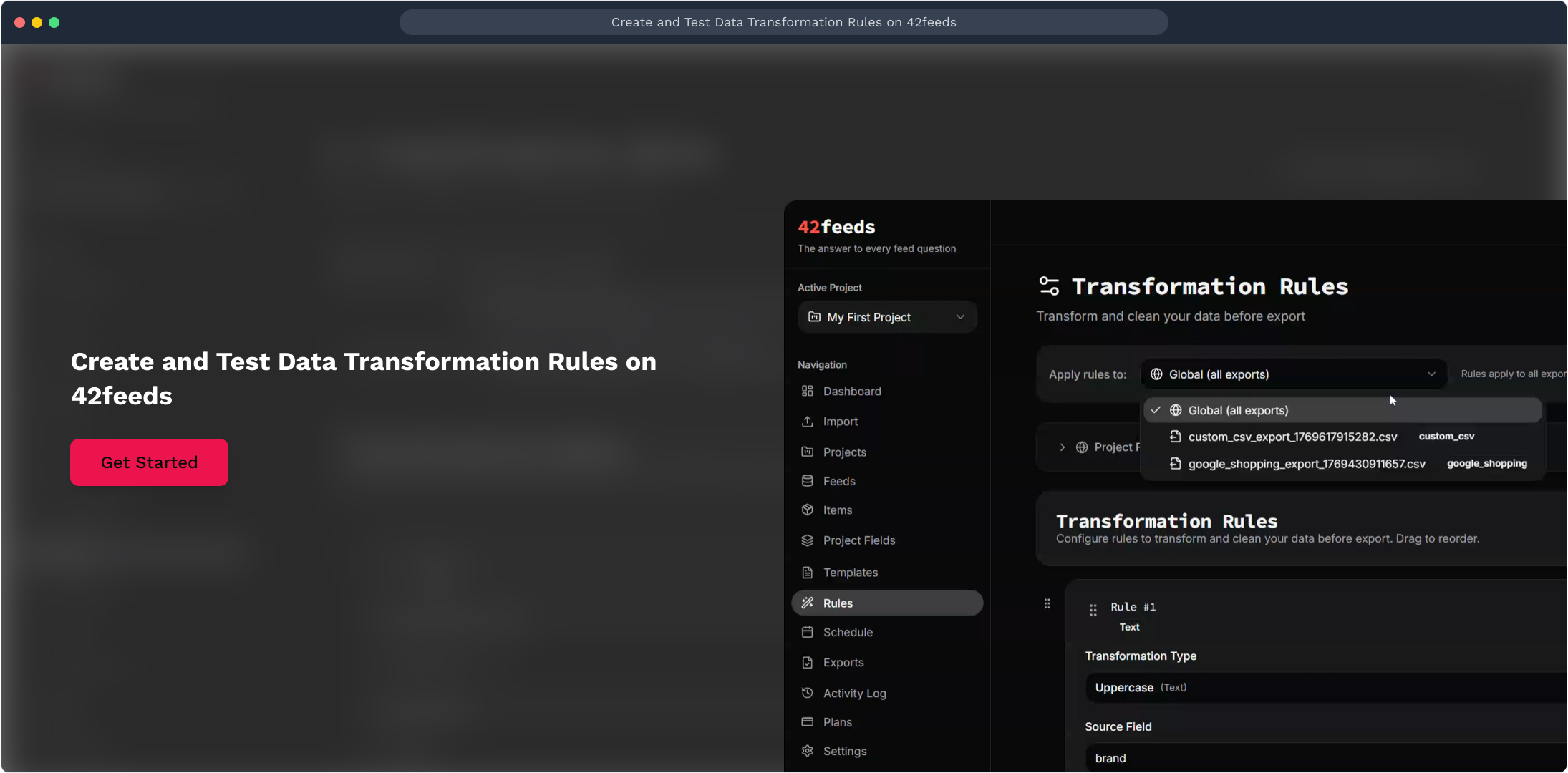
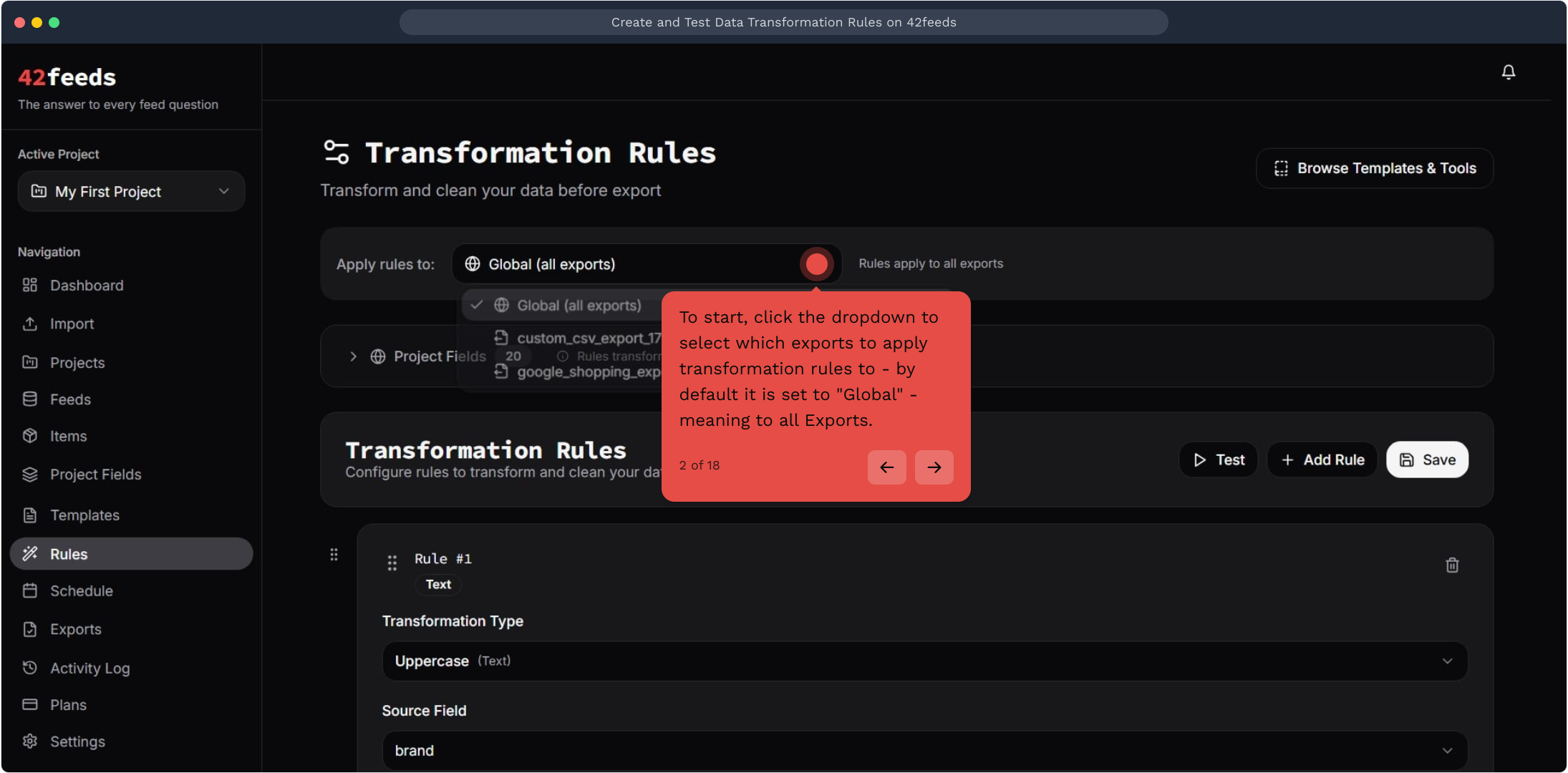
2. To start, click the dropdown to select which exports to apply transformation rules to
By default it is set to "Global" - meaning to all Exports.
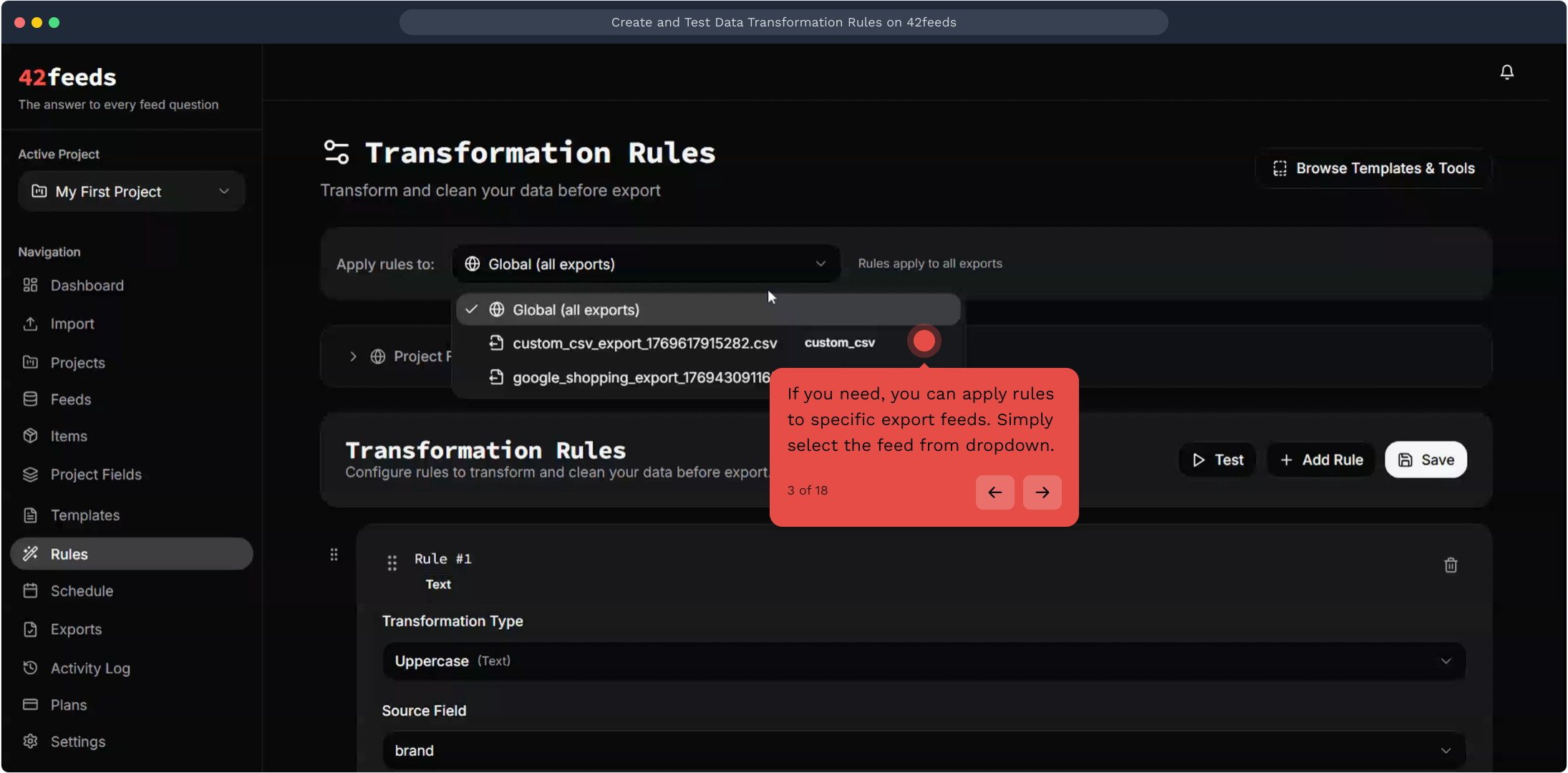
3. If you need, you can apply rules to specific export feeds
Simply select the feed from dropdown.
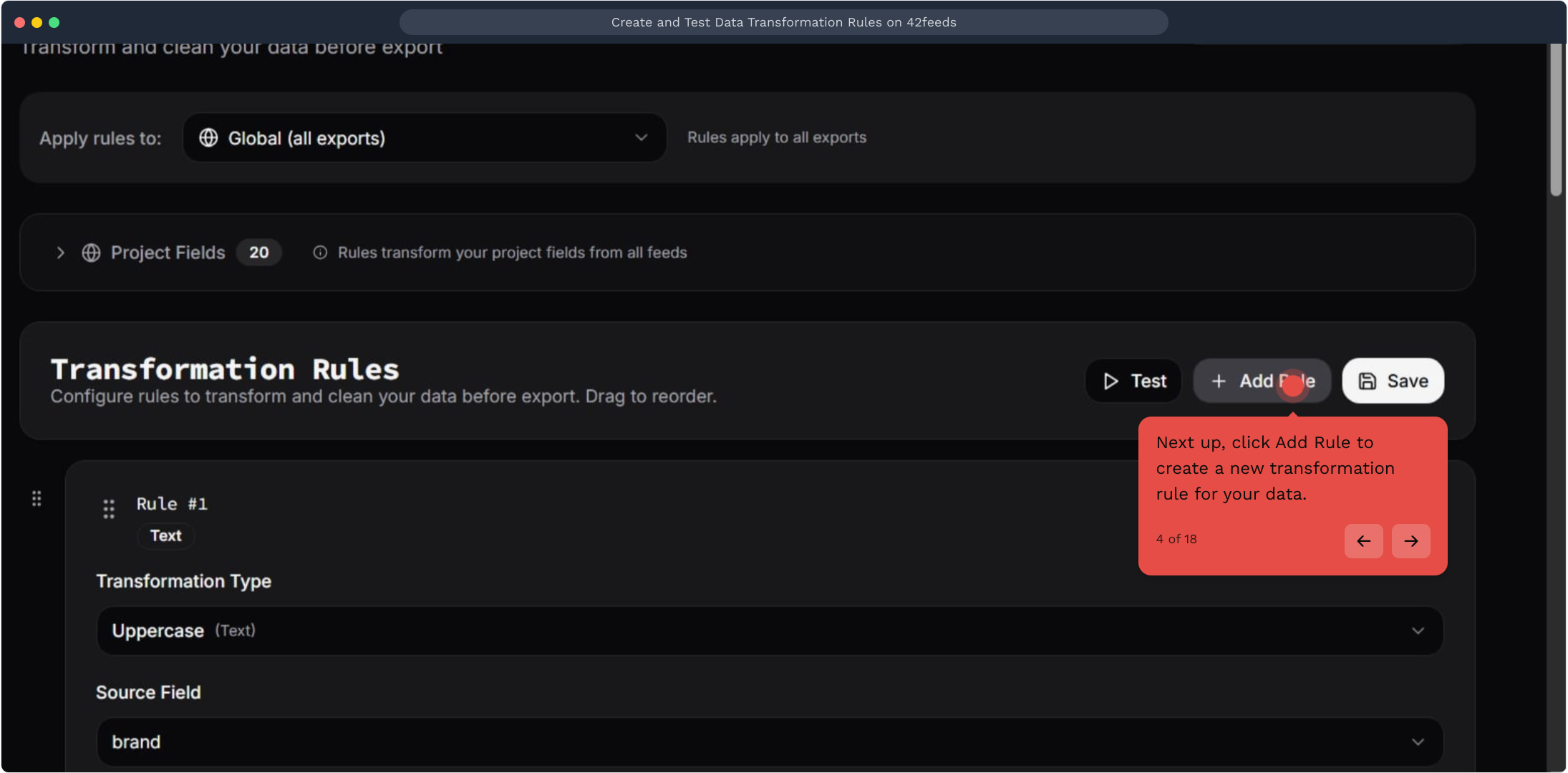
4. Next up, click Add Rule to create a new transformation rule for your data
5. Next up, click the Transformation Type dropdown to select a text transformation method
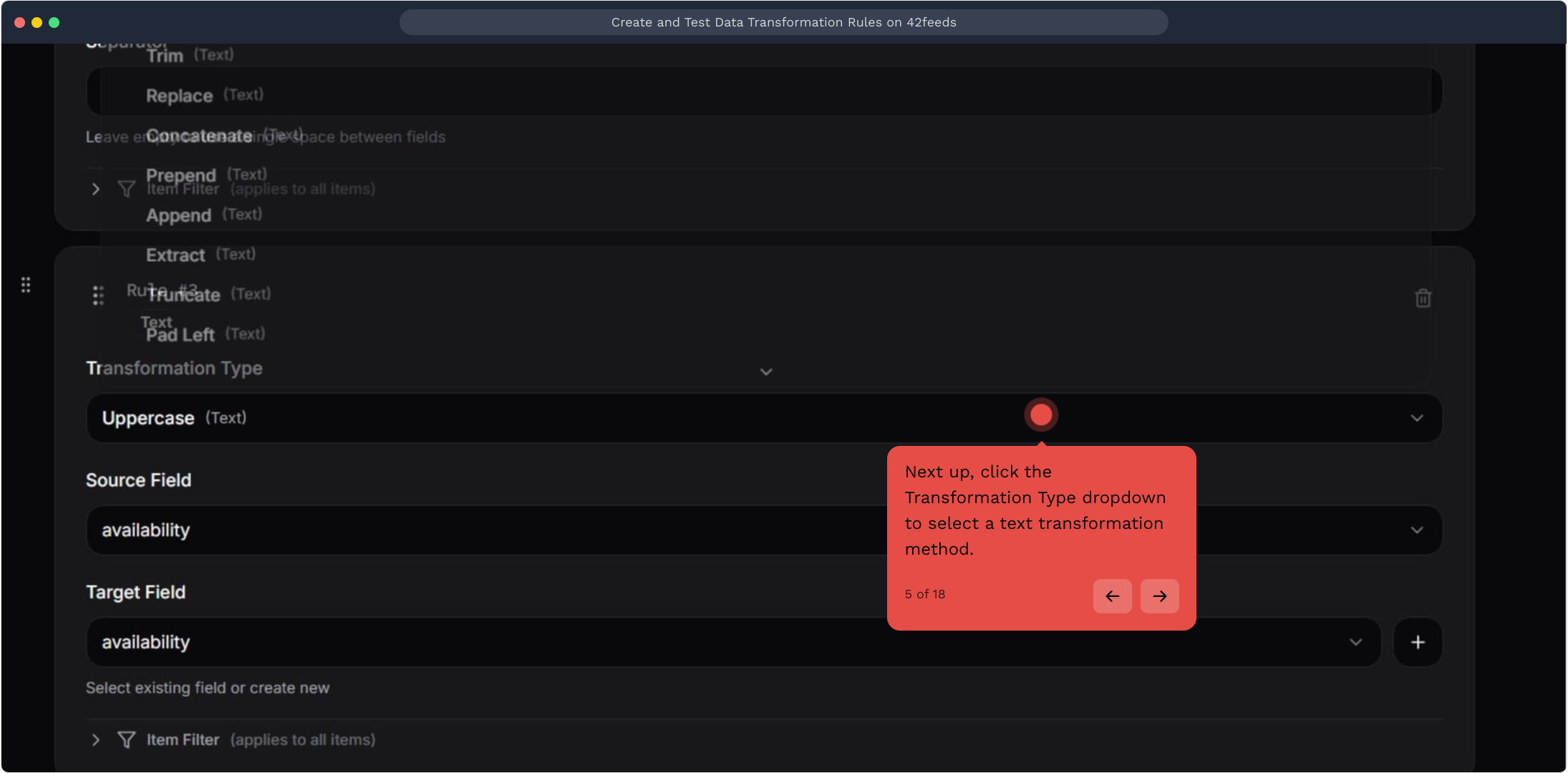
6. Video Step
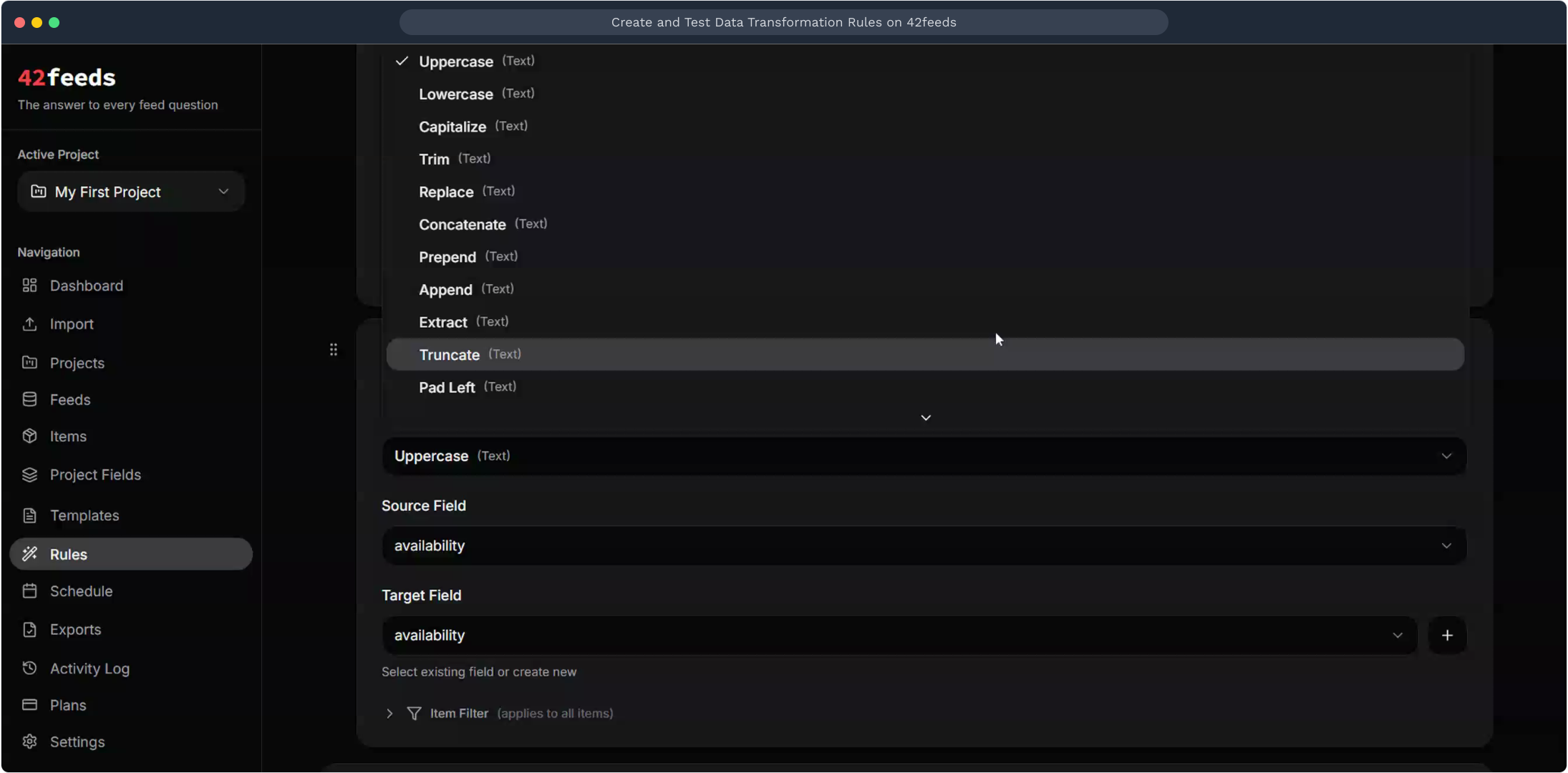
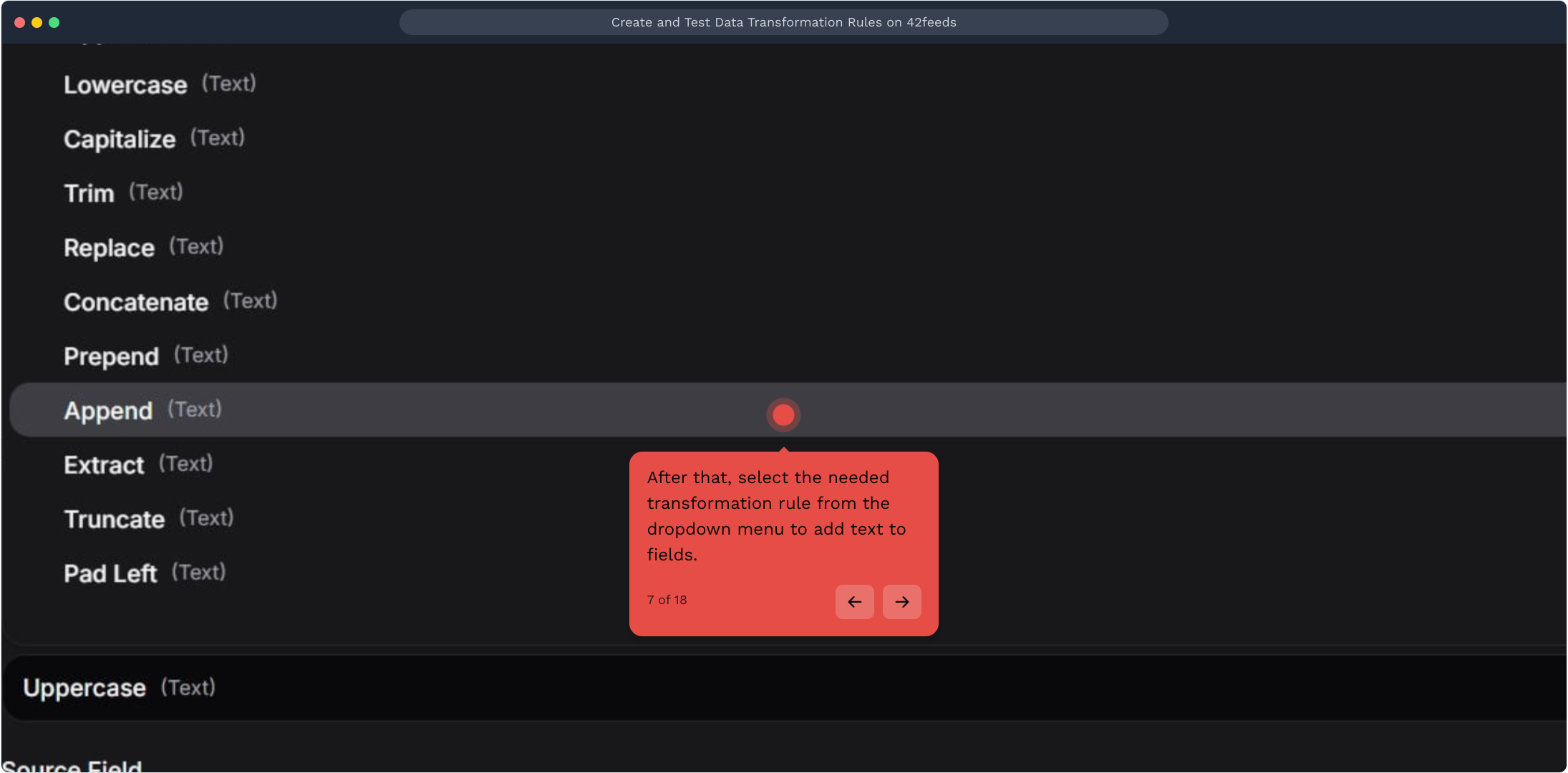
7. After that, select the needed transformation rule from the dropdown menu to add text to fields
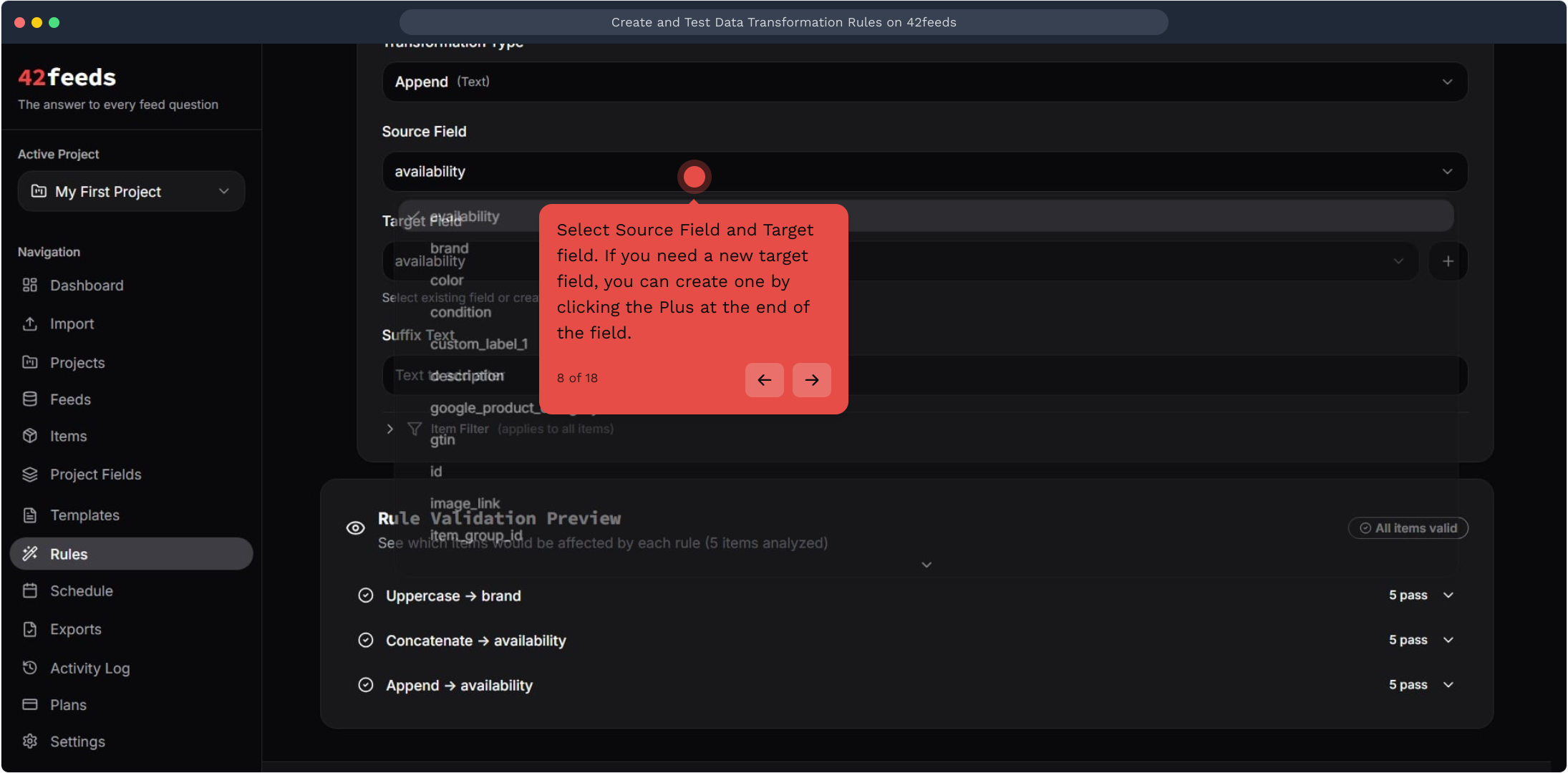
8. Select Source Field and Target field
If you need a new target field, you can create one by clicking the Plus at the end of the field.
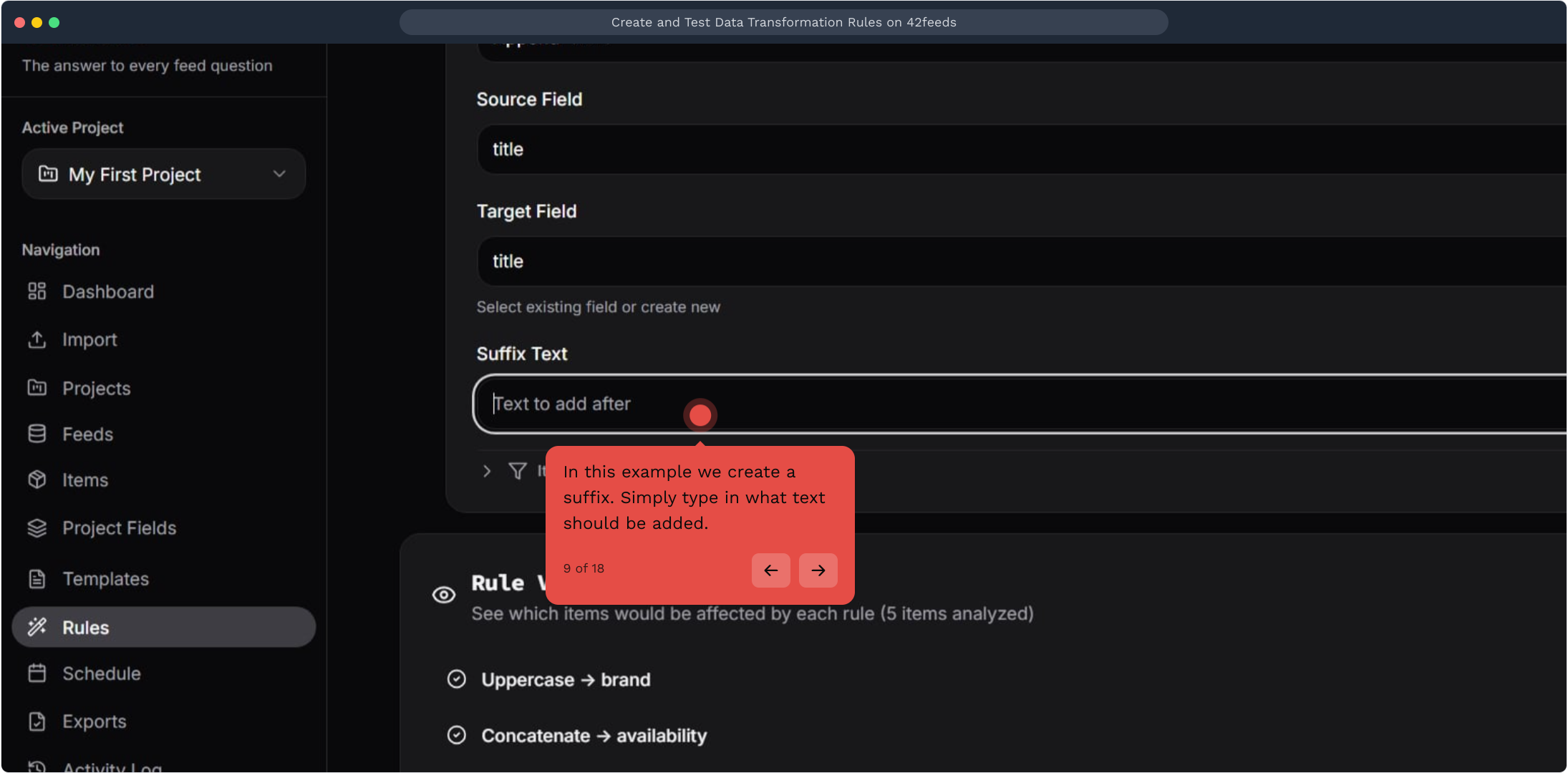
9. In this example we create a suffix
Simply type in what text should be added.
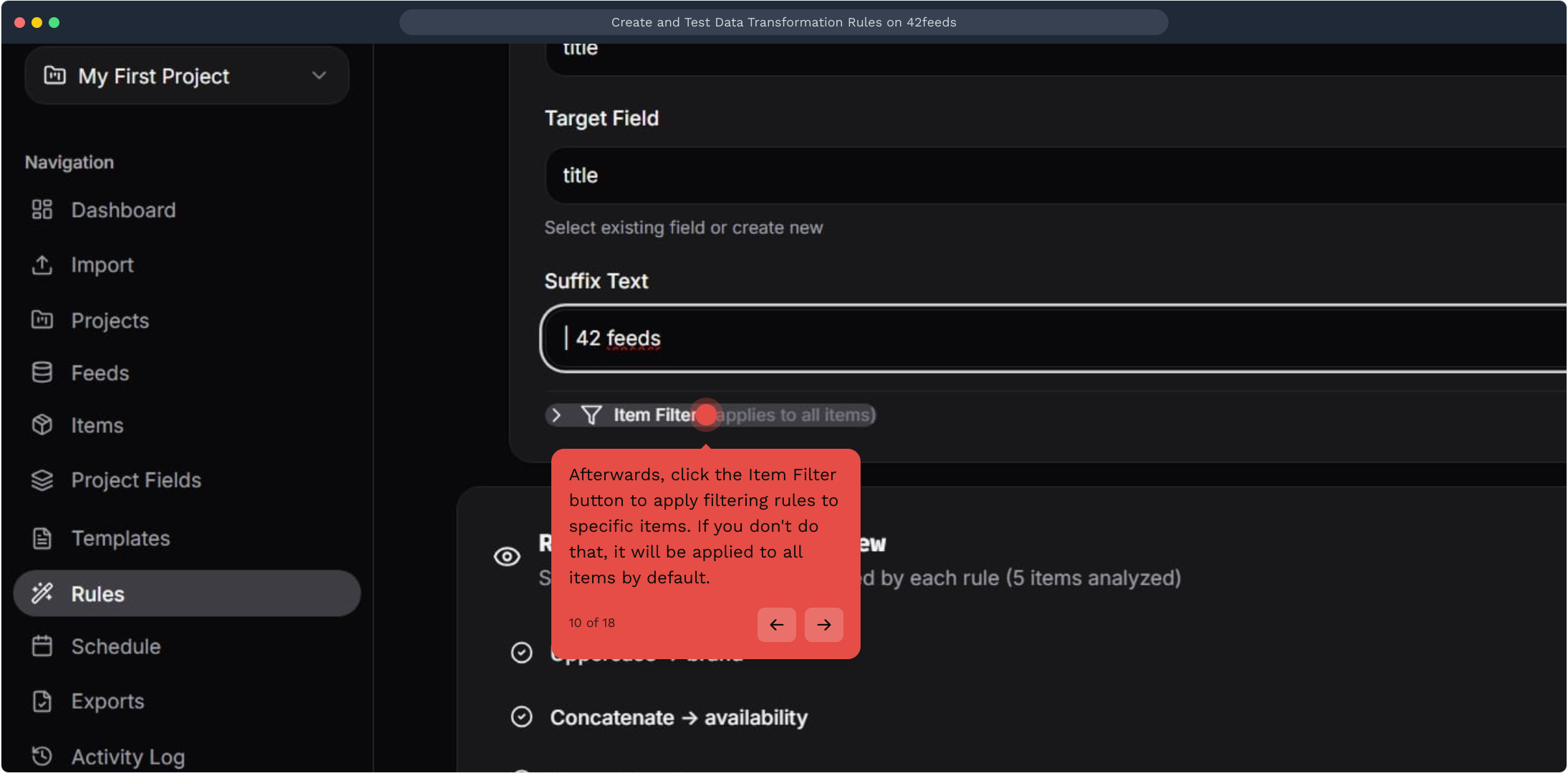
10. Afterwards, click the Item Filter button to apply filtering rules to specific items
If you don't do that, it will be applied to all items by default.
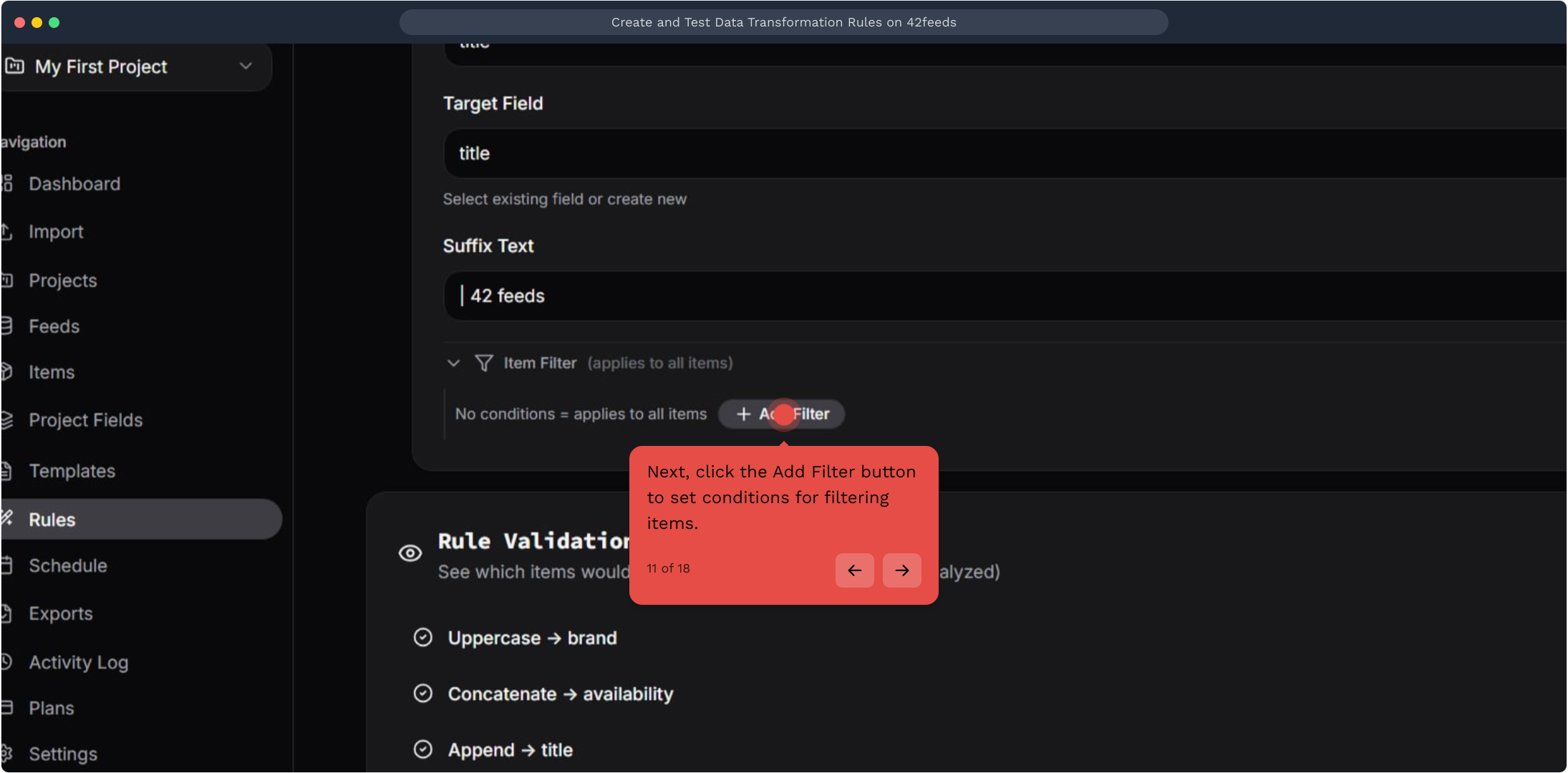
11. Next, click the Add Filter button to set conditions for filtering items
12. From here, select the field condition from the dropdown menu to apply
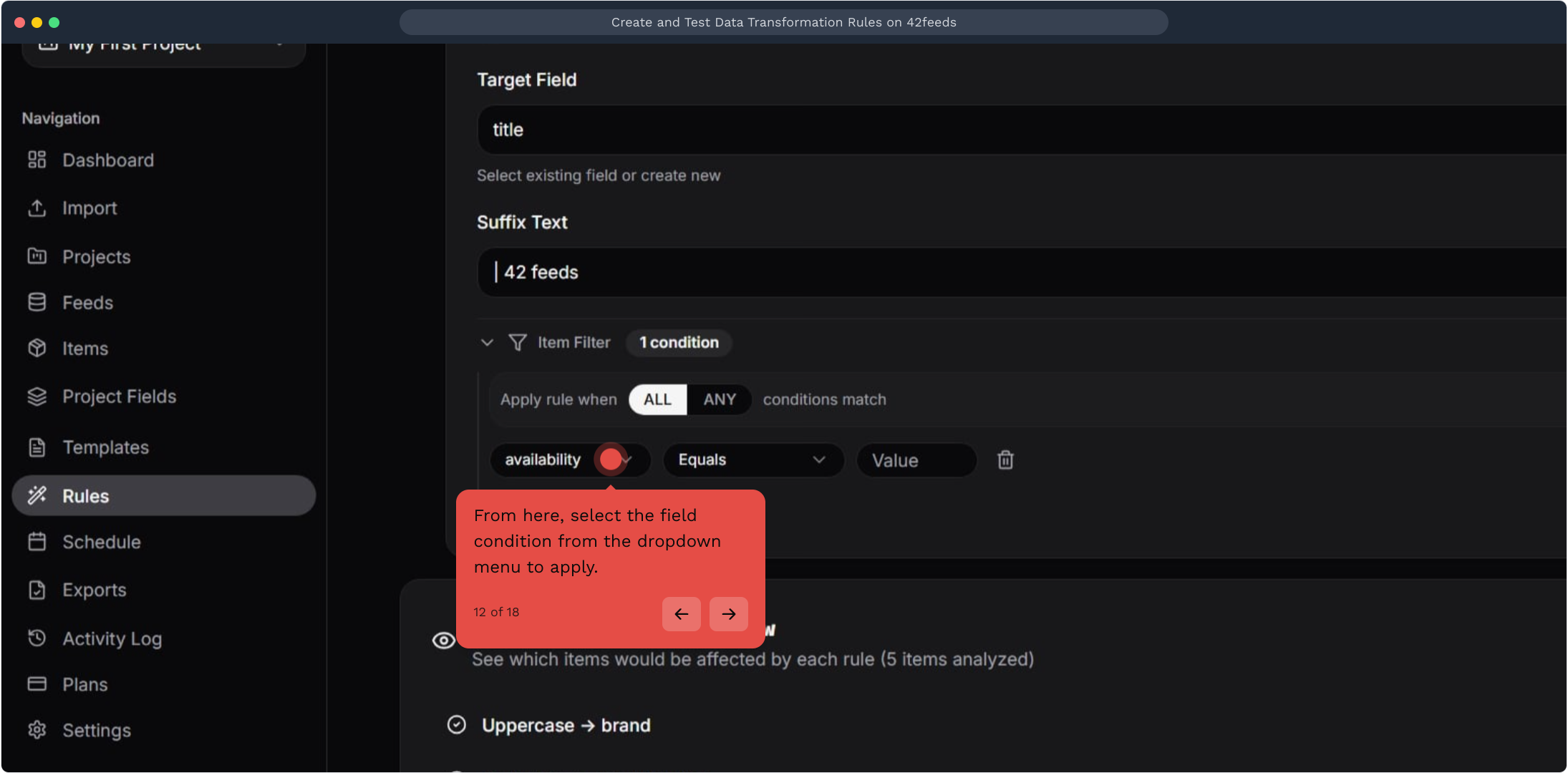
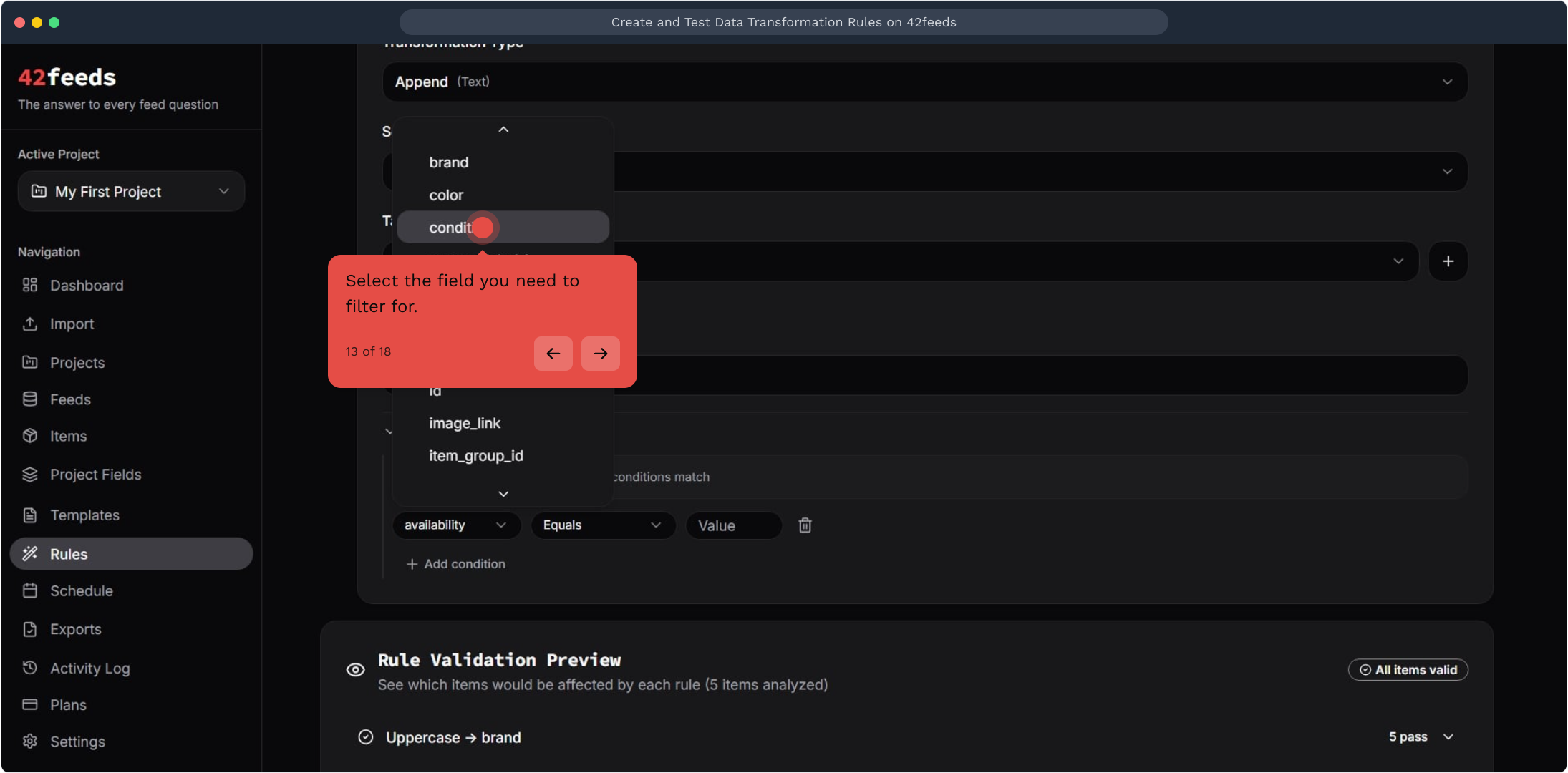
13. Select the field you need to filter for
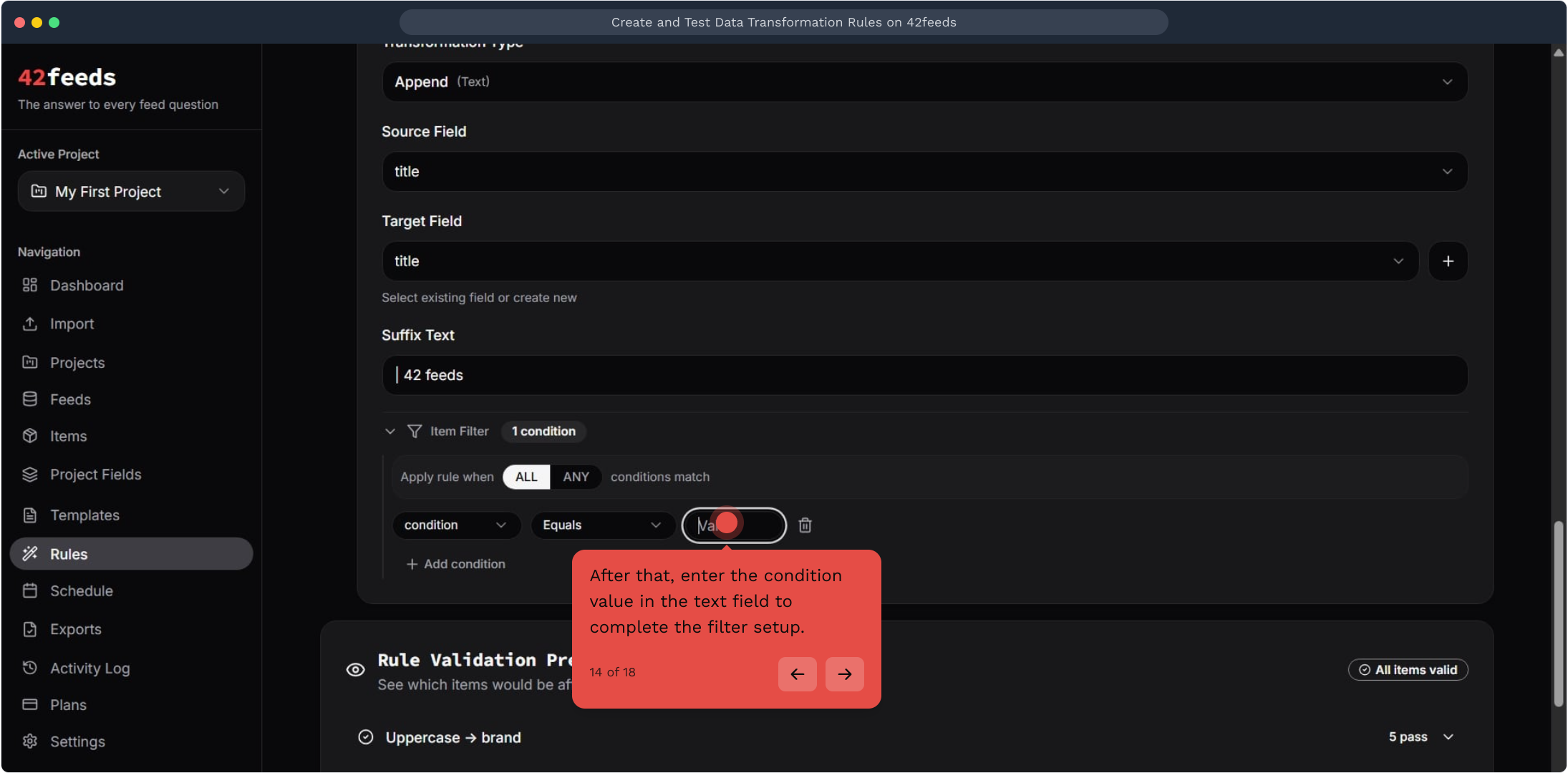
14. After that, enter the condition value in the text field to complete the filter setup
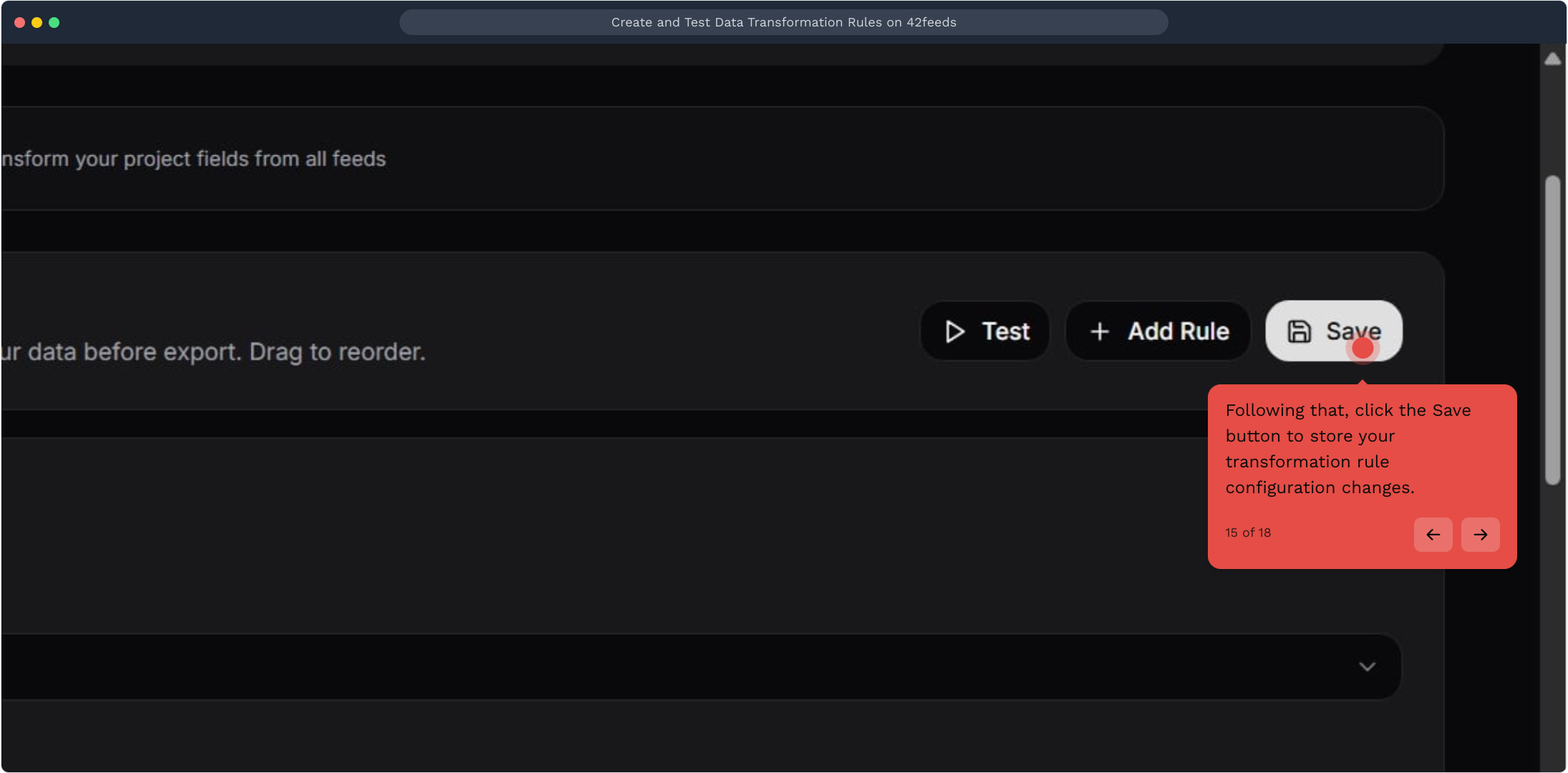
15. Following that, click the Save button to store your transformation rule configuration changes
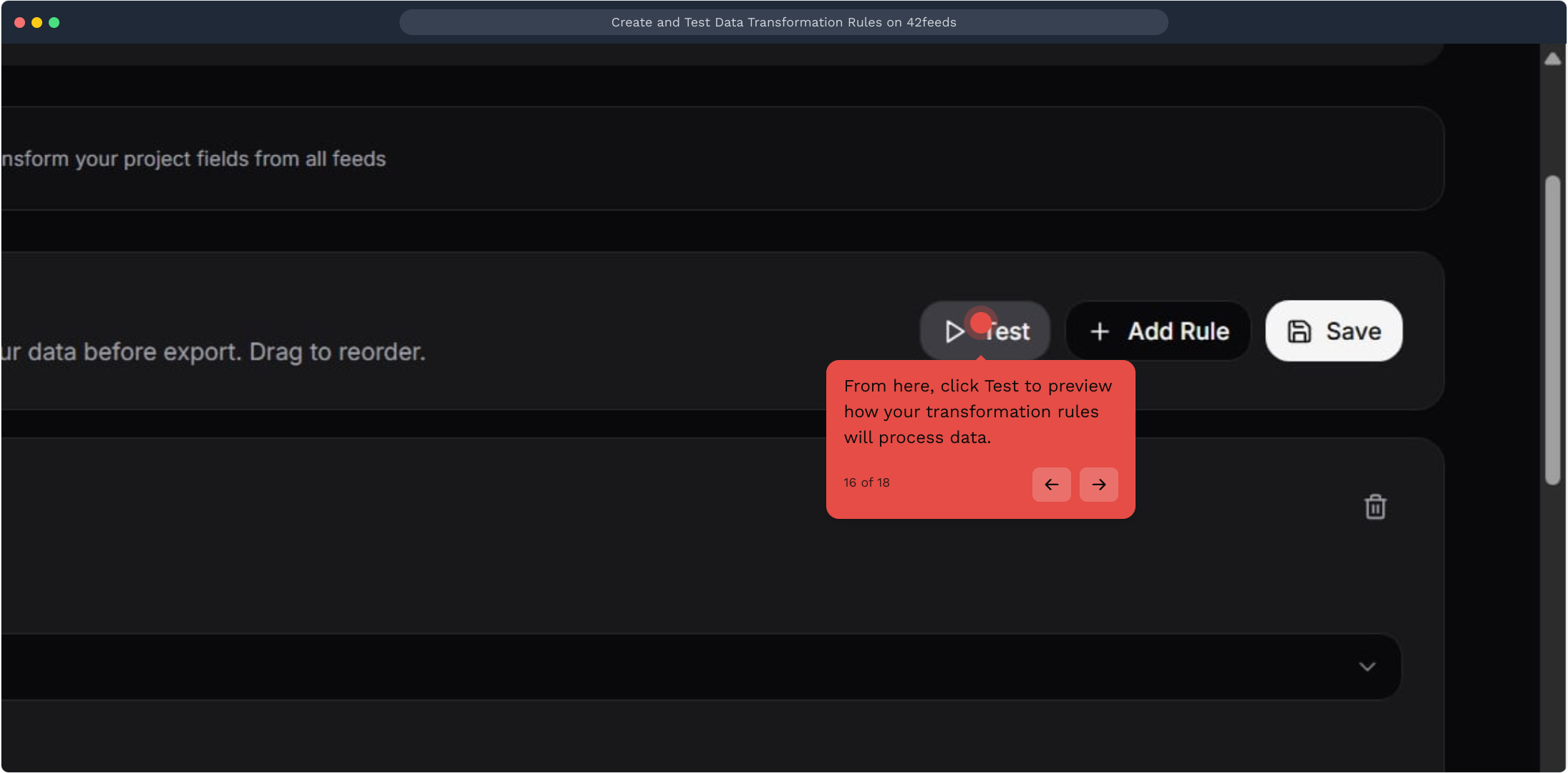
16. From here, click Test to preview how your transformation rules will process data
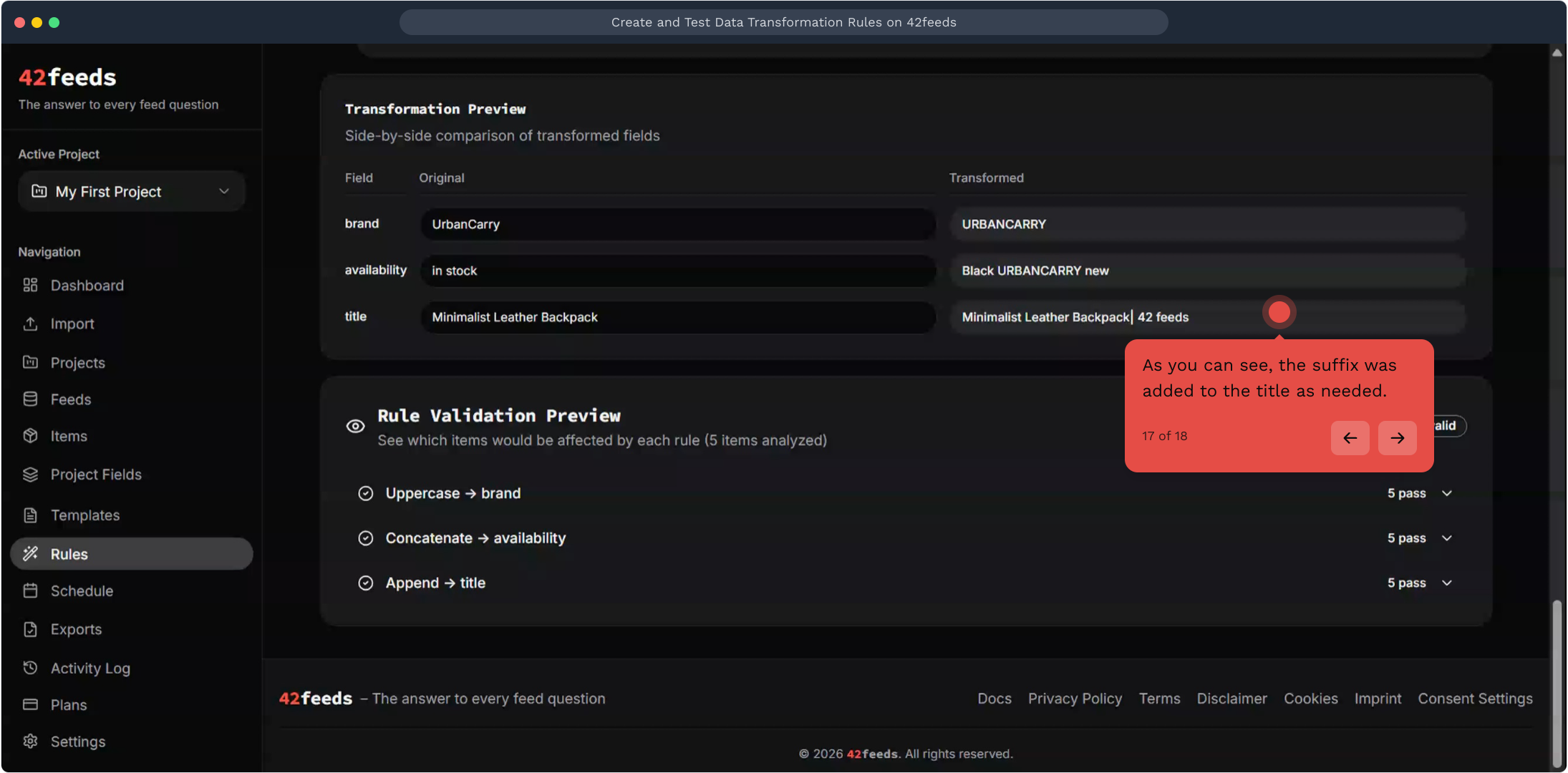
17. As you can see, the suffix was added to the title as needed
This workflow was created with Supademo.