Configure Scheduled Import and Export on 42feeds
Author: Hello 42feeds Steps: 17 Source: Supademo
Interactive Demo
Try this tutorial directly in your browser:
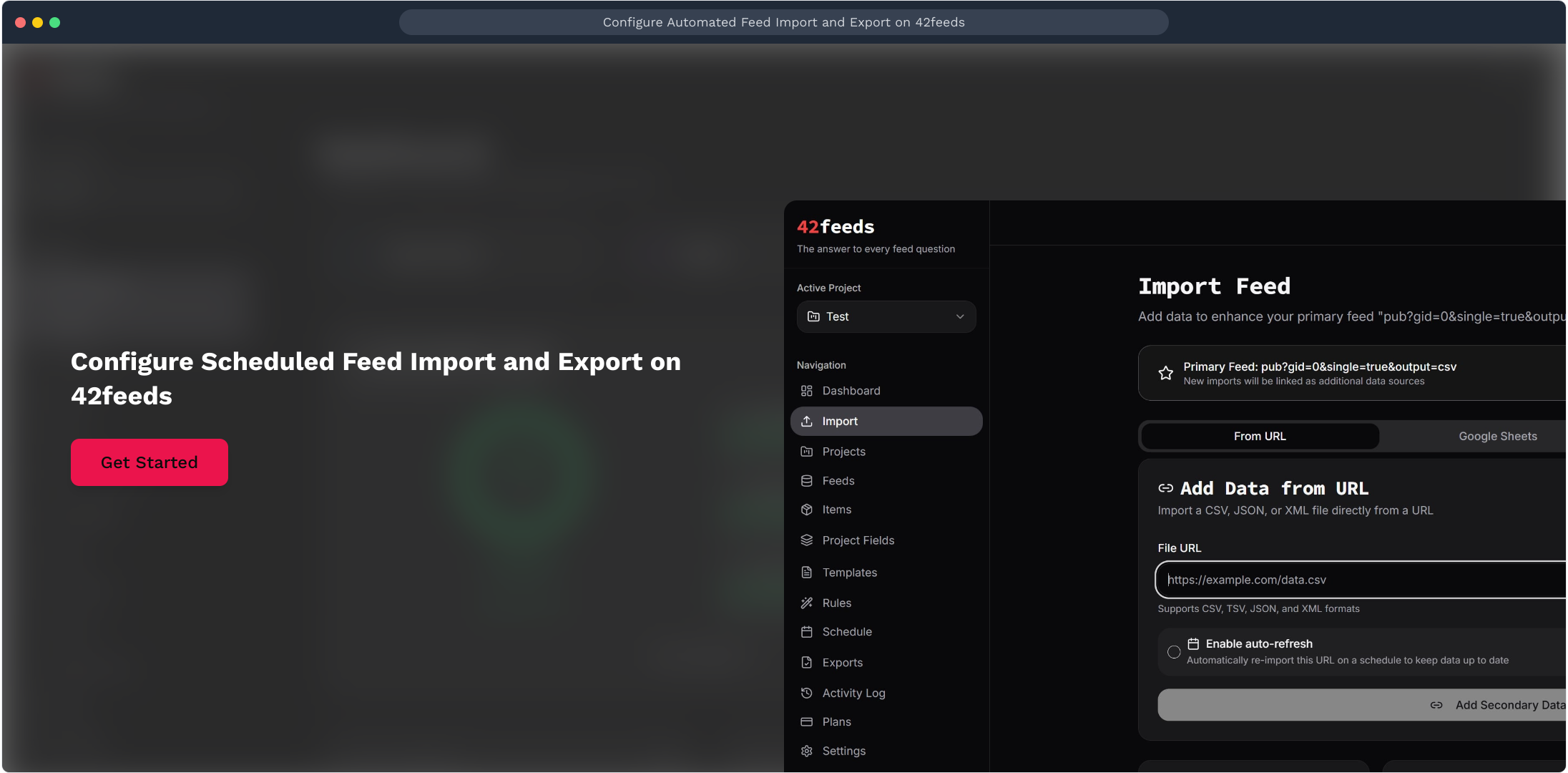
1. Configure Scheduled Feed Import and Export on 42feeds
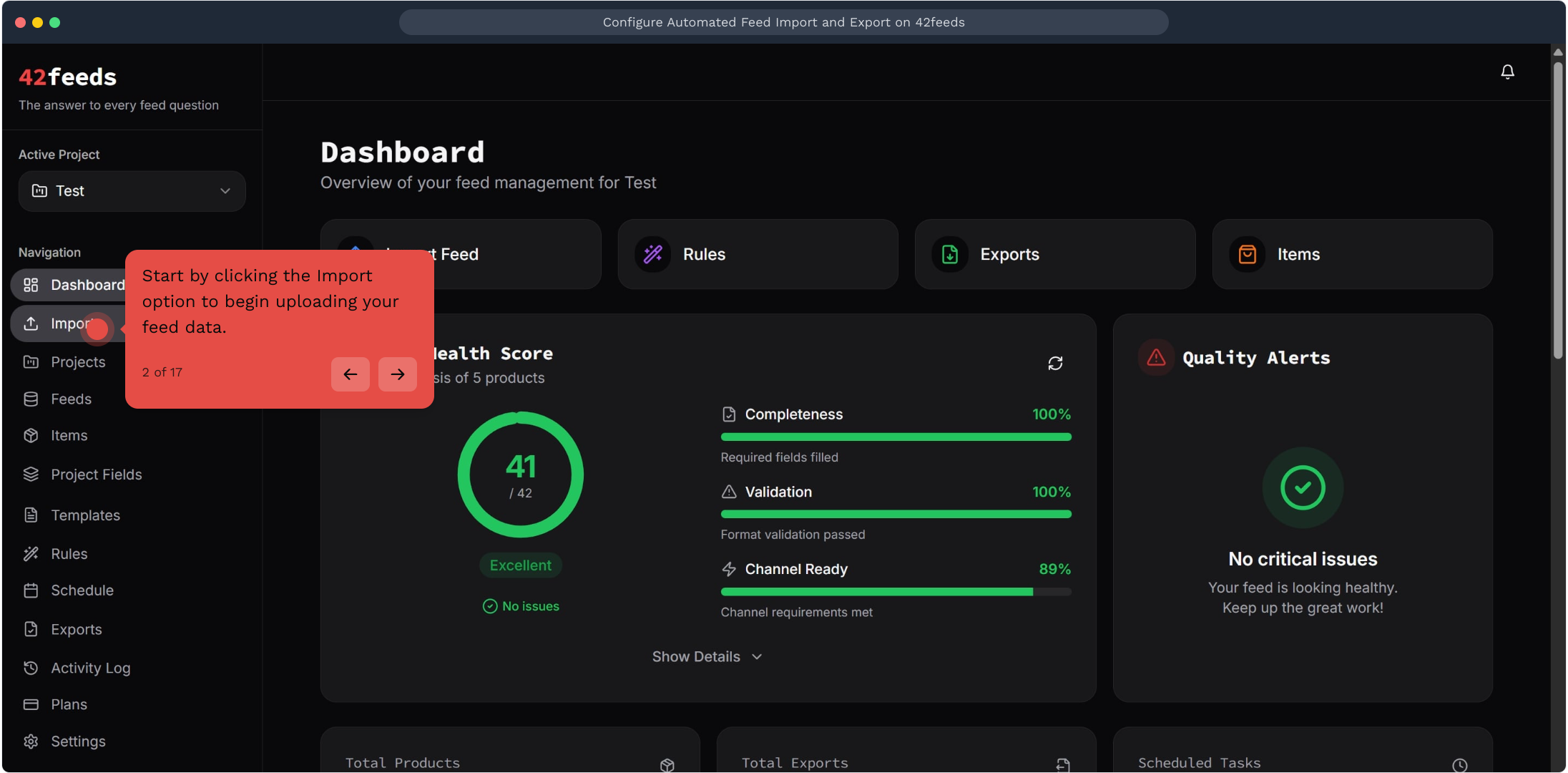
2. Start by clicking the Import option to begin uploading your feed data
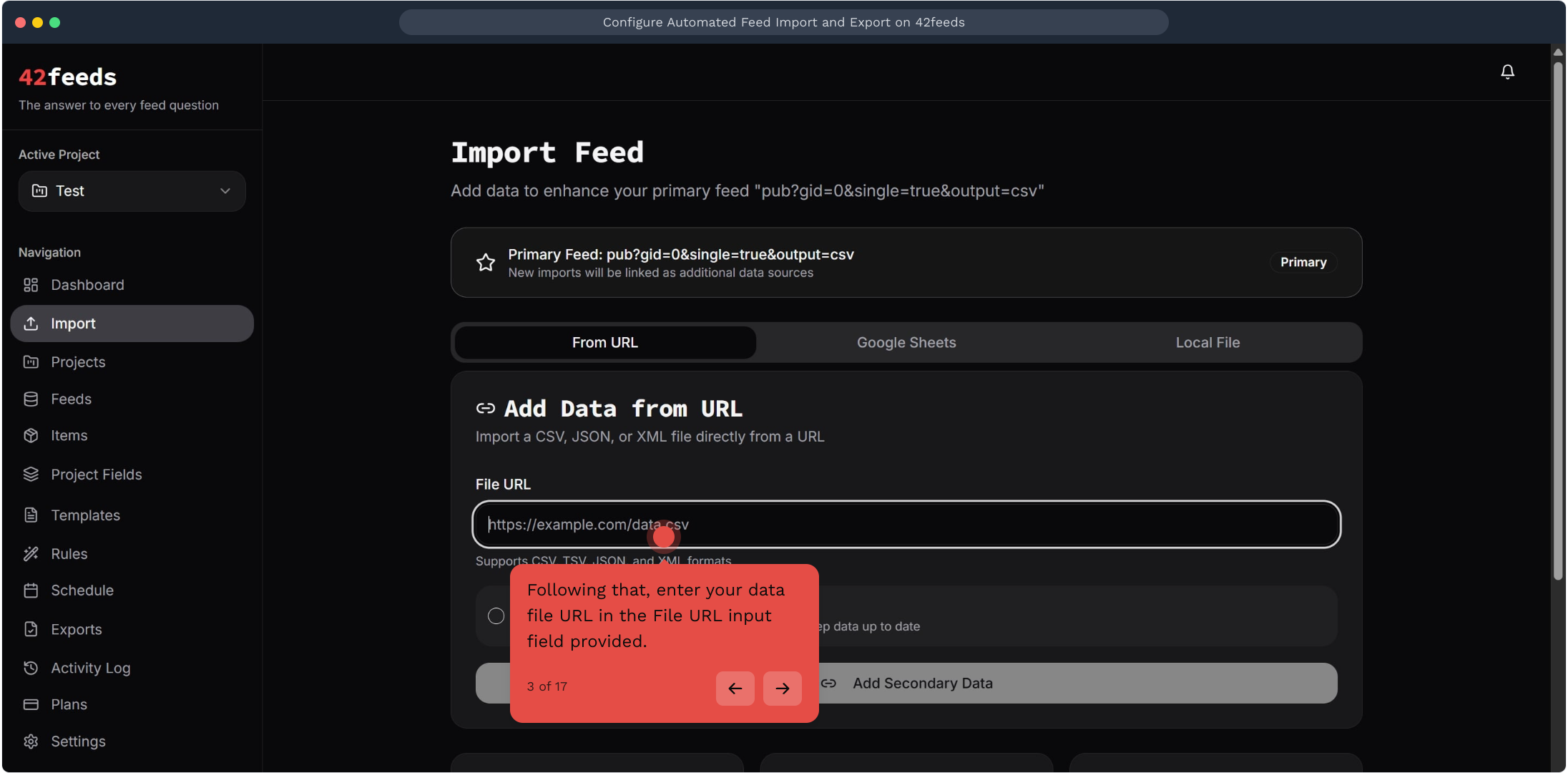
3. Following that, enter your data file URL in the File URL input field provided
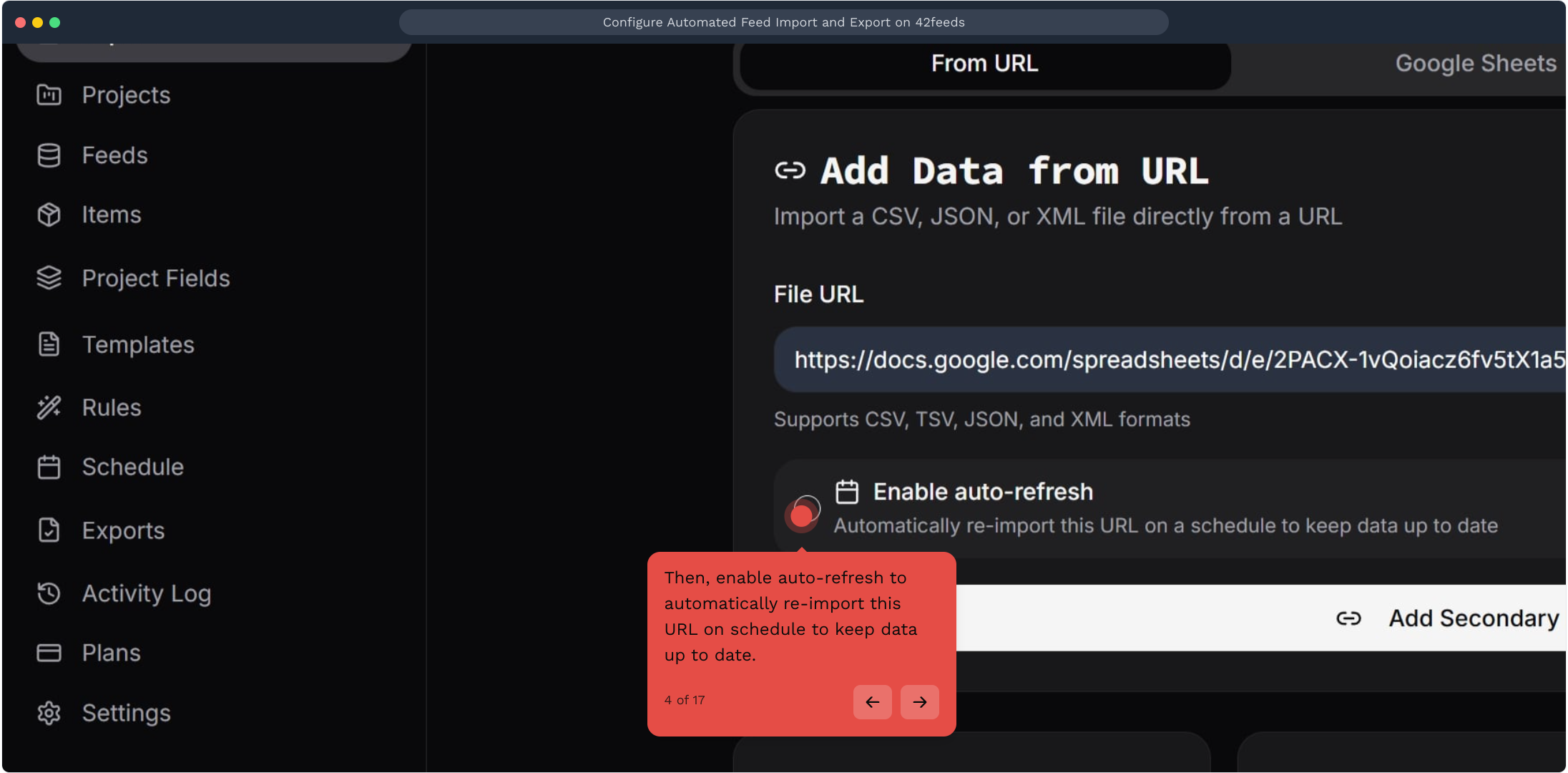
4. Then, enable auto-refresh to automatically re-import this URL on schedule to keep data up to date
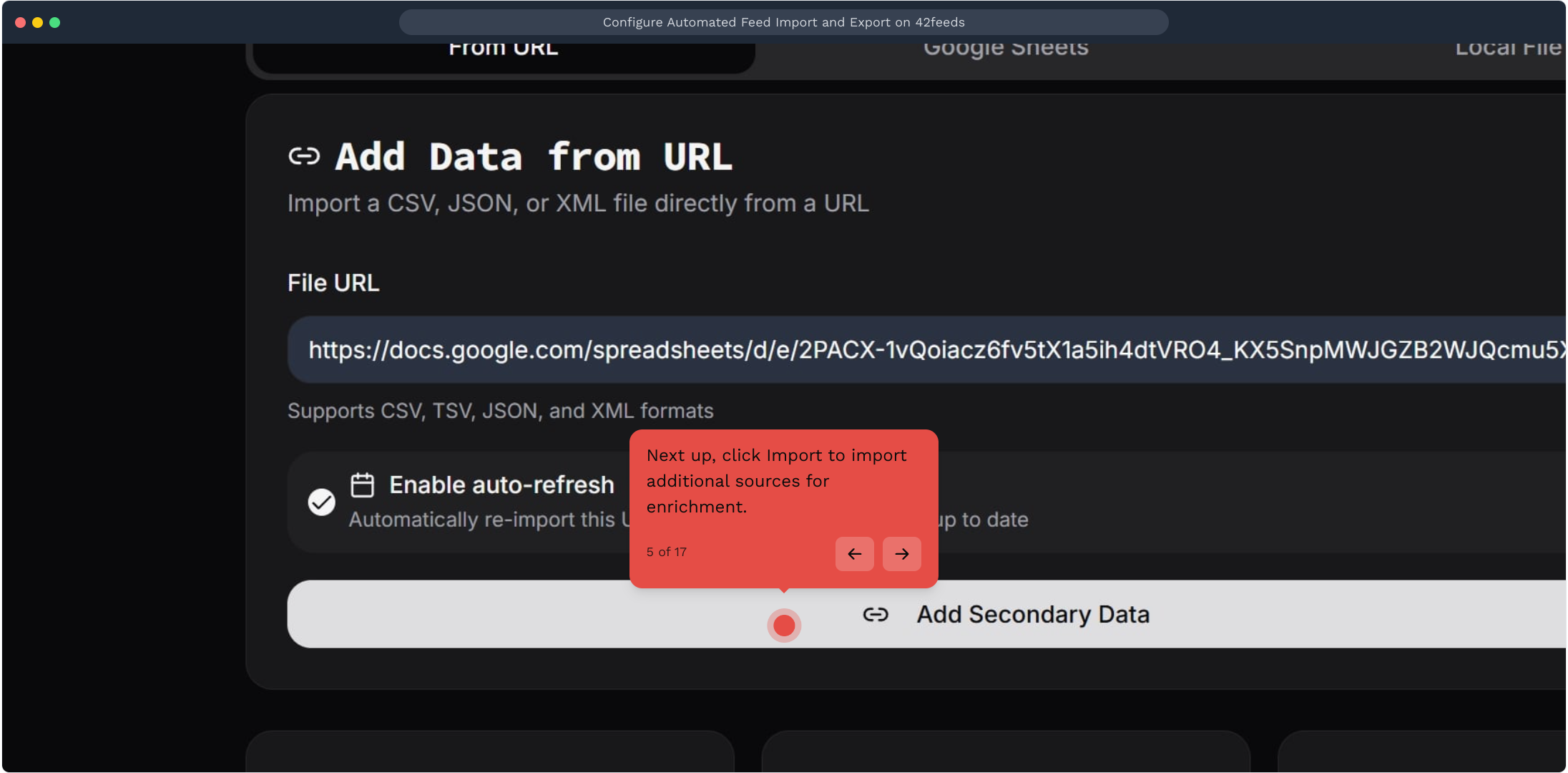
5. Next up, click Import to import additional sources for enrichment
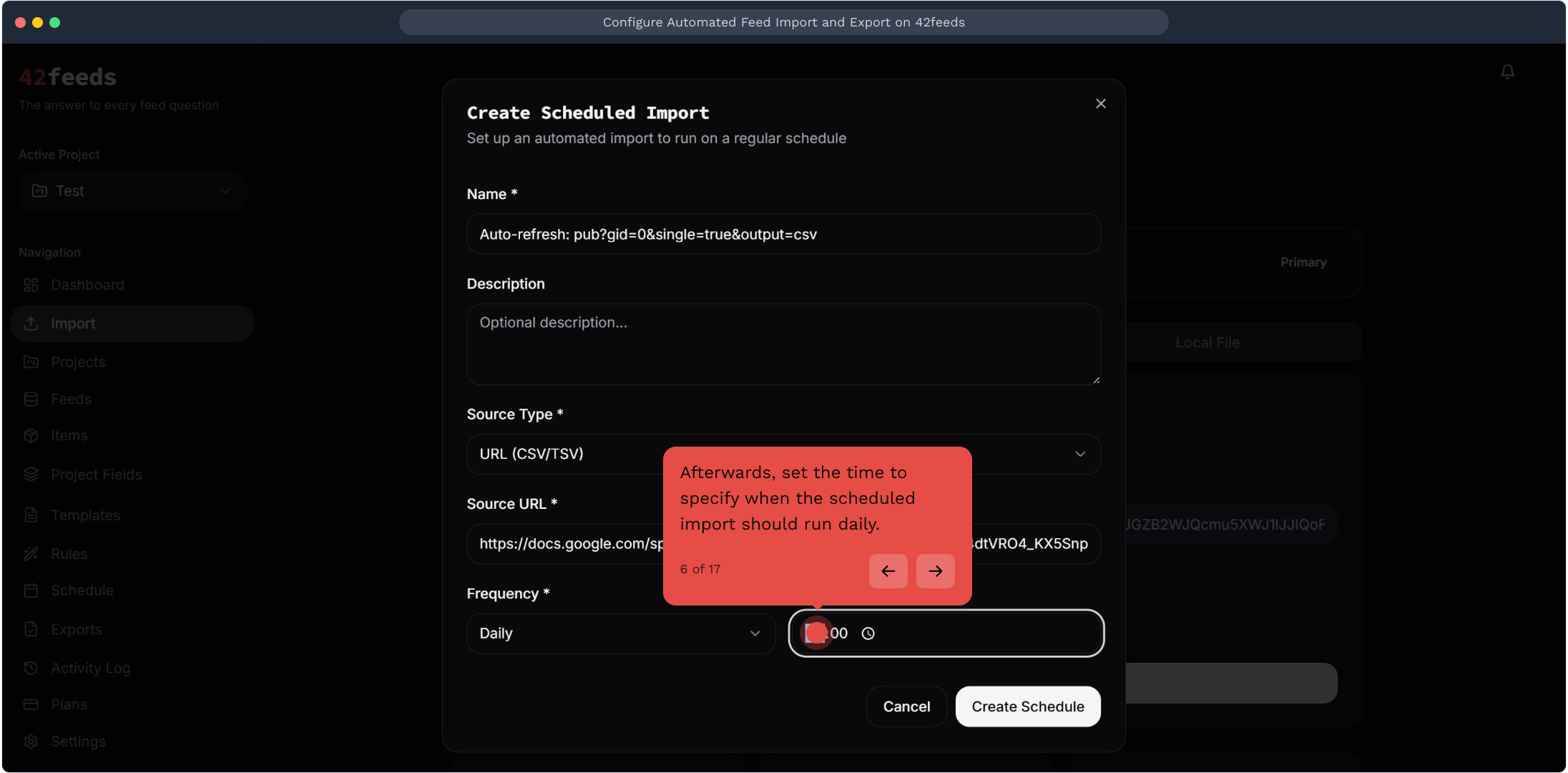
6. Afterwards, set the time to specify when the scheduled import should run daily
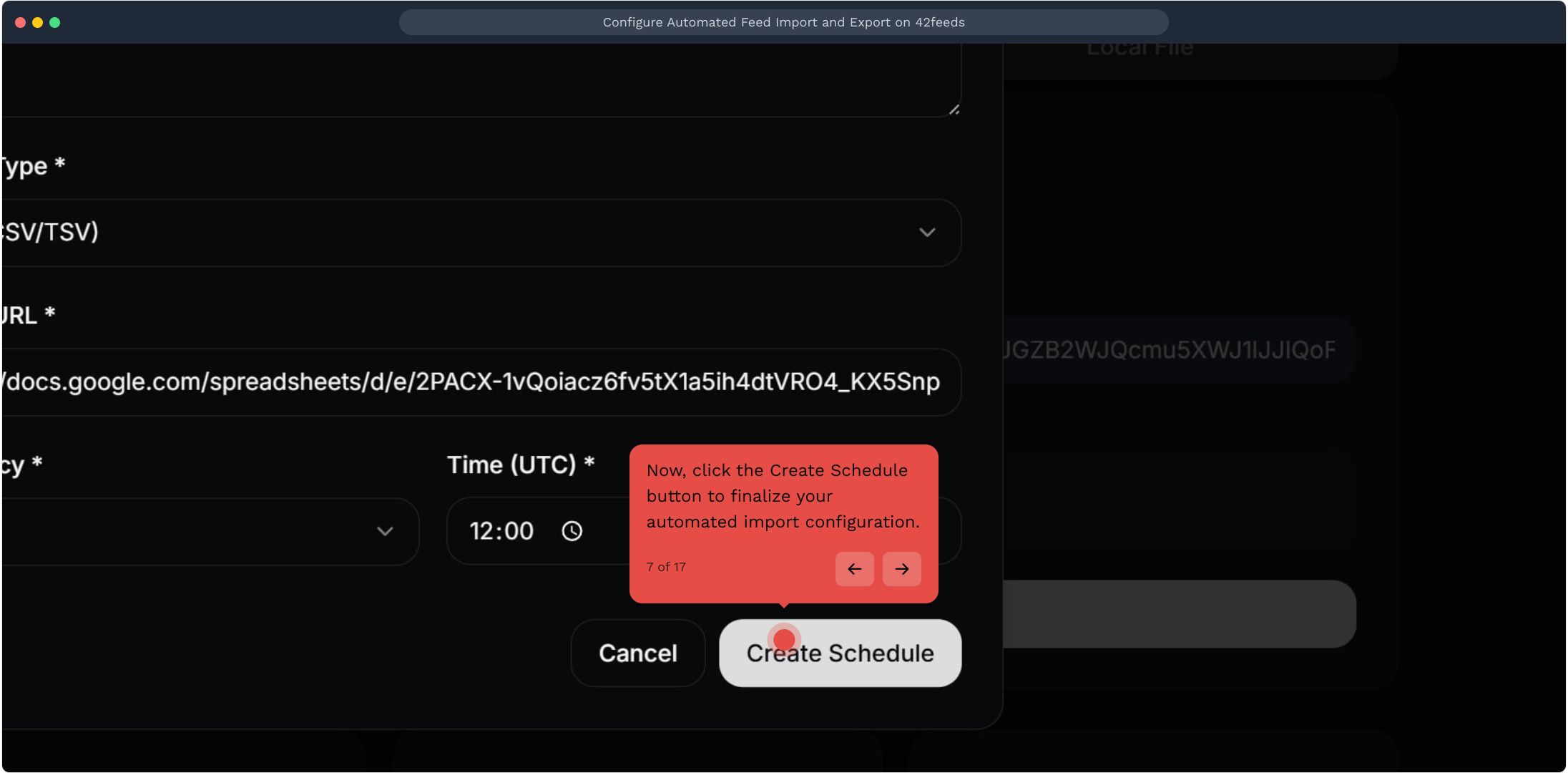
7. Now, click the Create Schedule button to finalize your automated import configuration
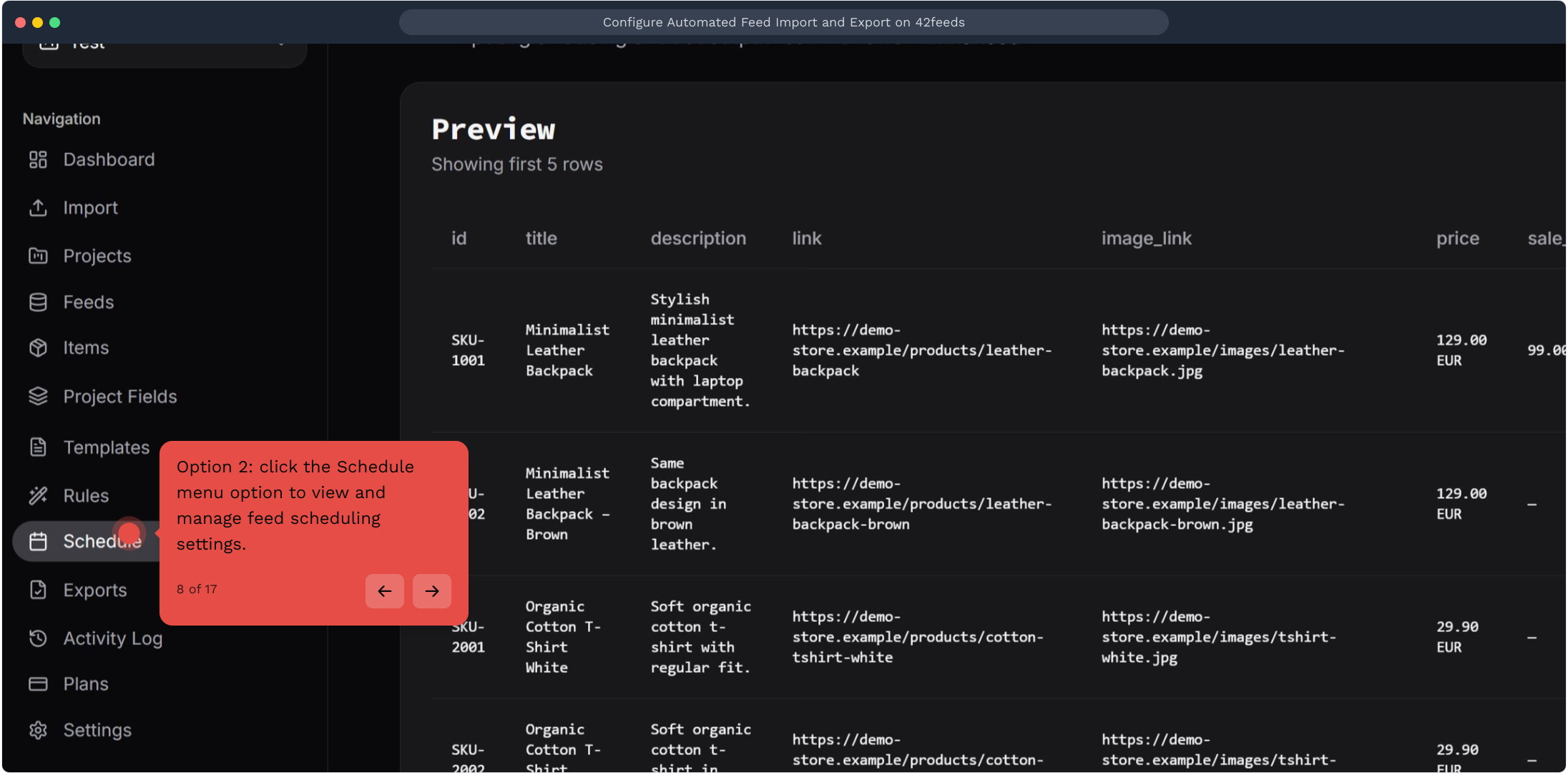
8. Option 2: click the Schedule menu option to view and manage feed scheduling settings
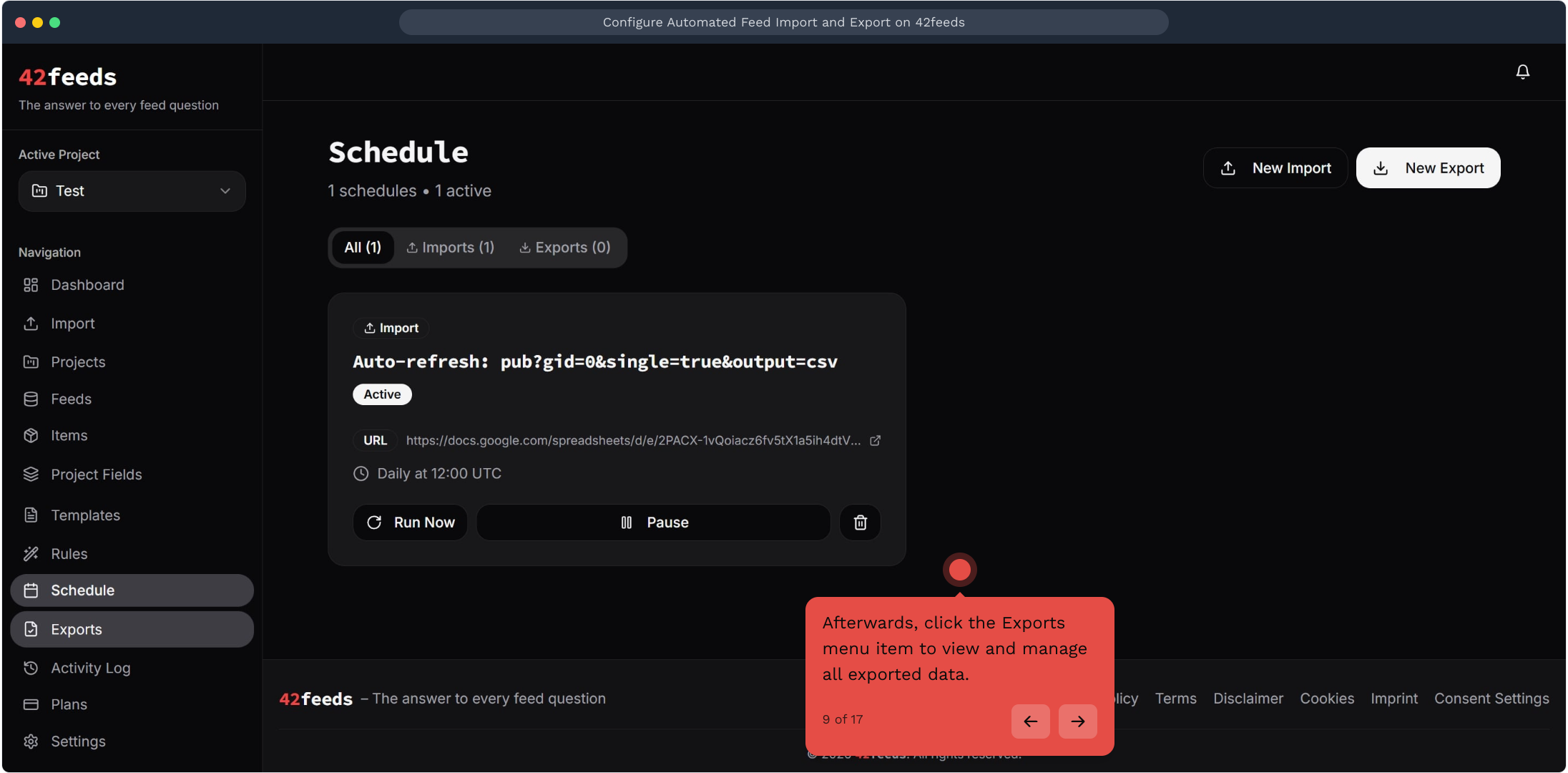
9. Afterwards, click the Exports menu item to view and manage all exported data
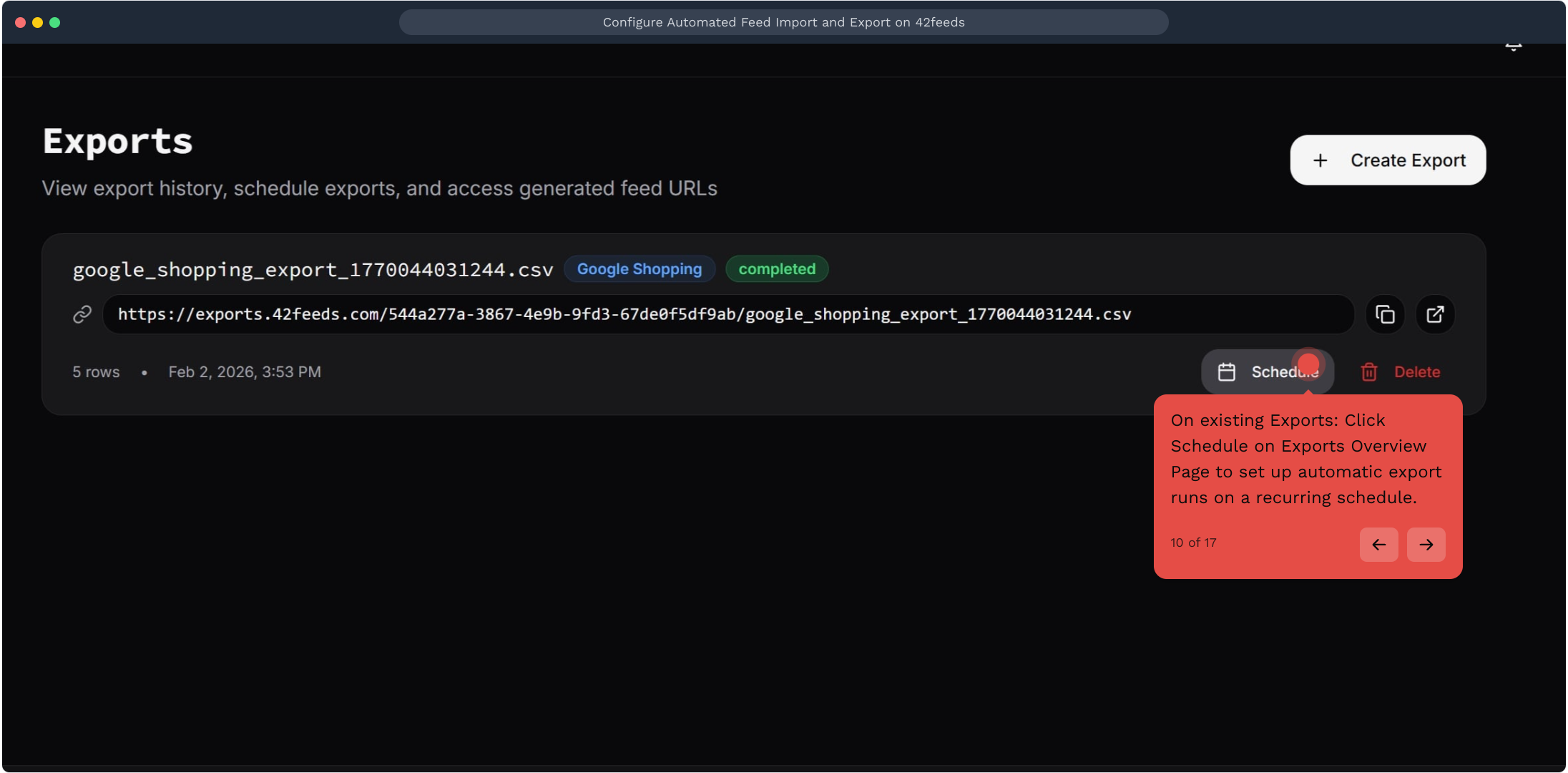
10. On existing Exports: Click Schedule on Exports Overview Page to set up automatic export runs on a recurring schedule
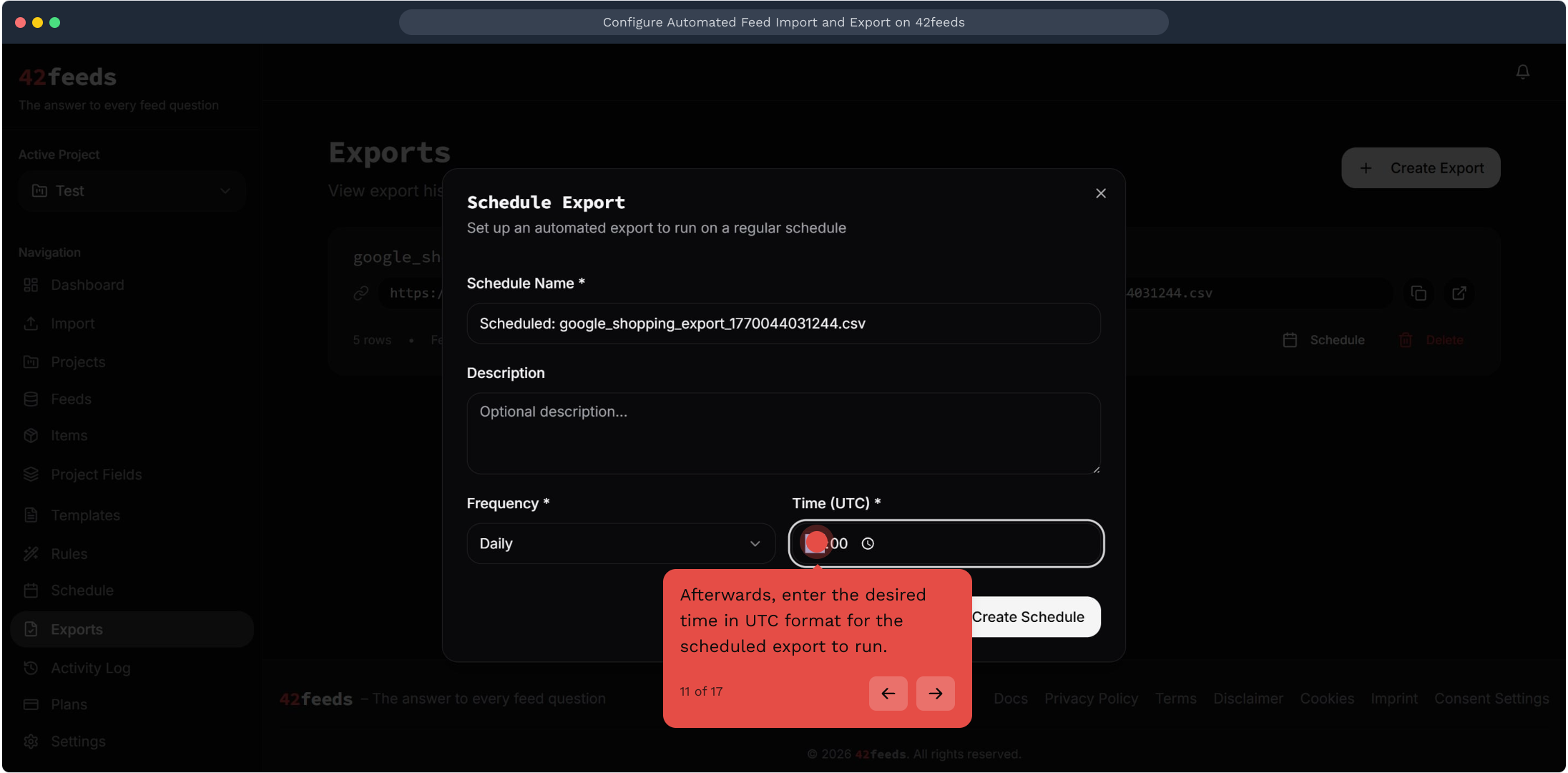
11. Afterwards, enter the desired time in UTC format for the scheduled export to run
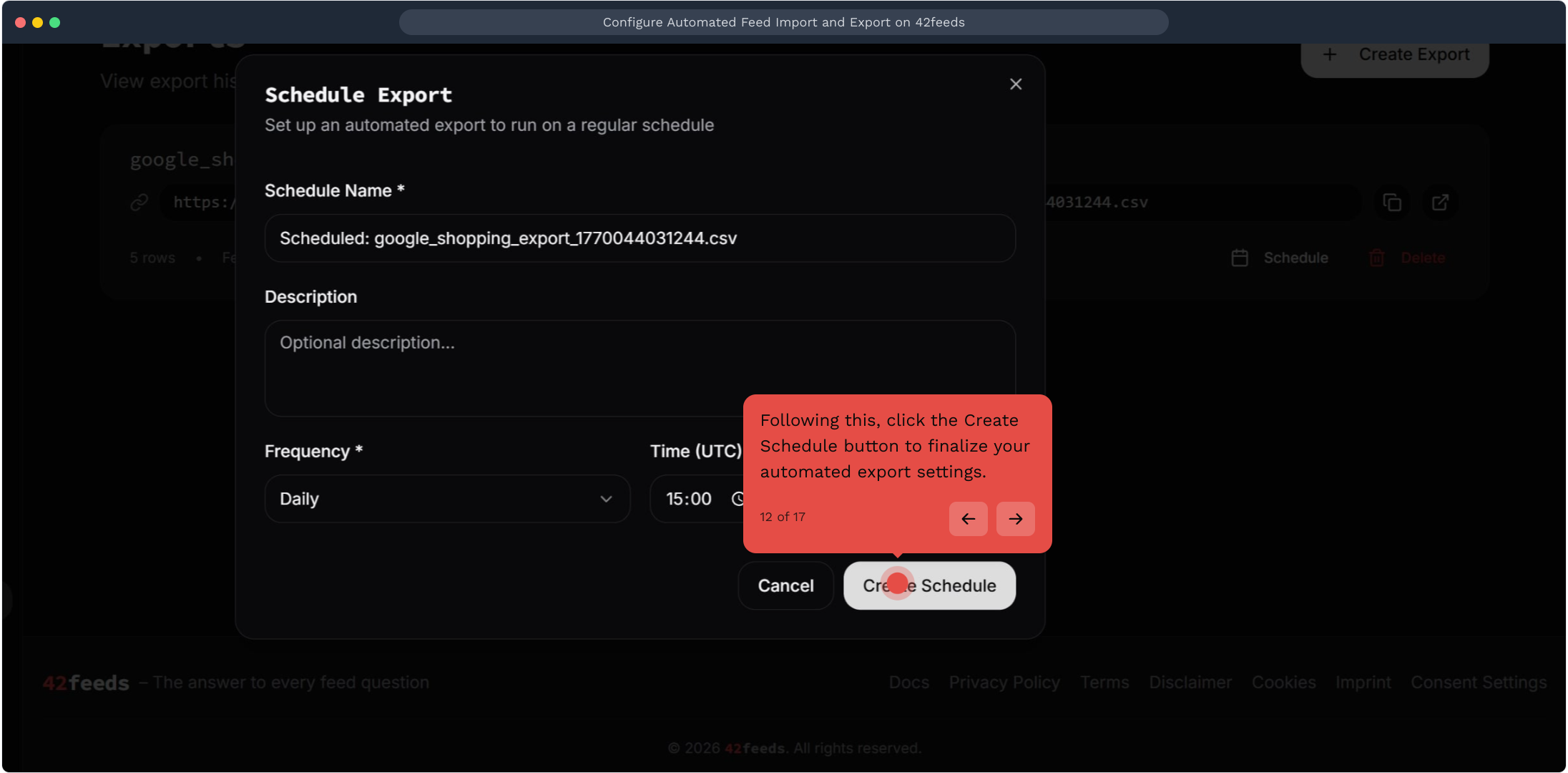
12. Following this, click the Create Schedule button to finalize your automated export settings
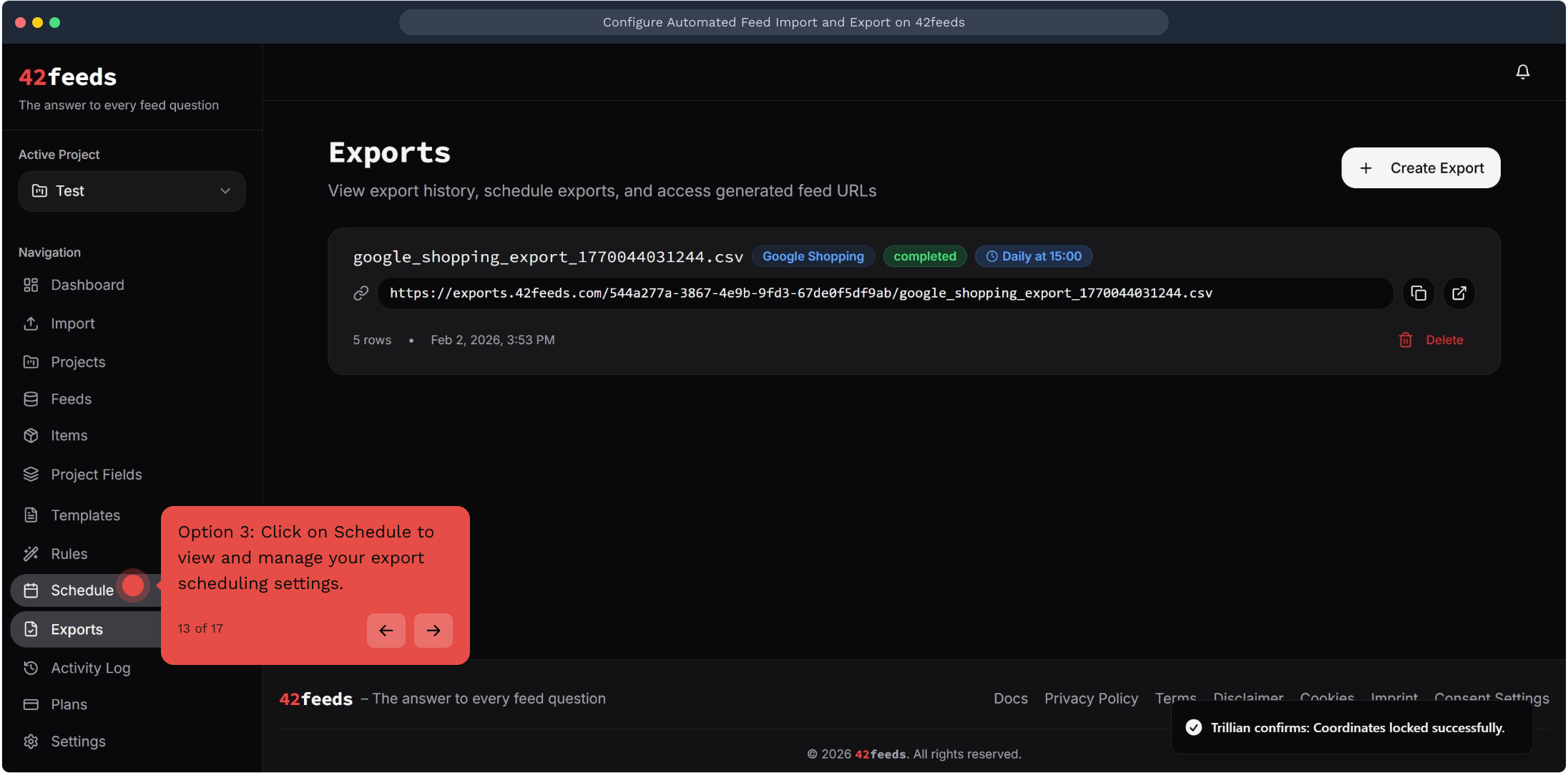
13. Option 3: Click on Schedule to view and manage your export scheduling settings
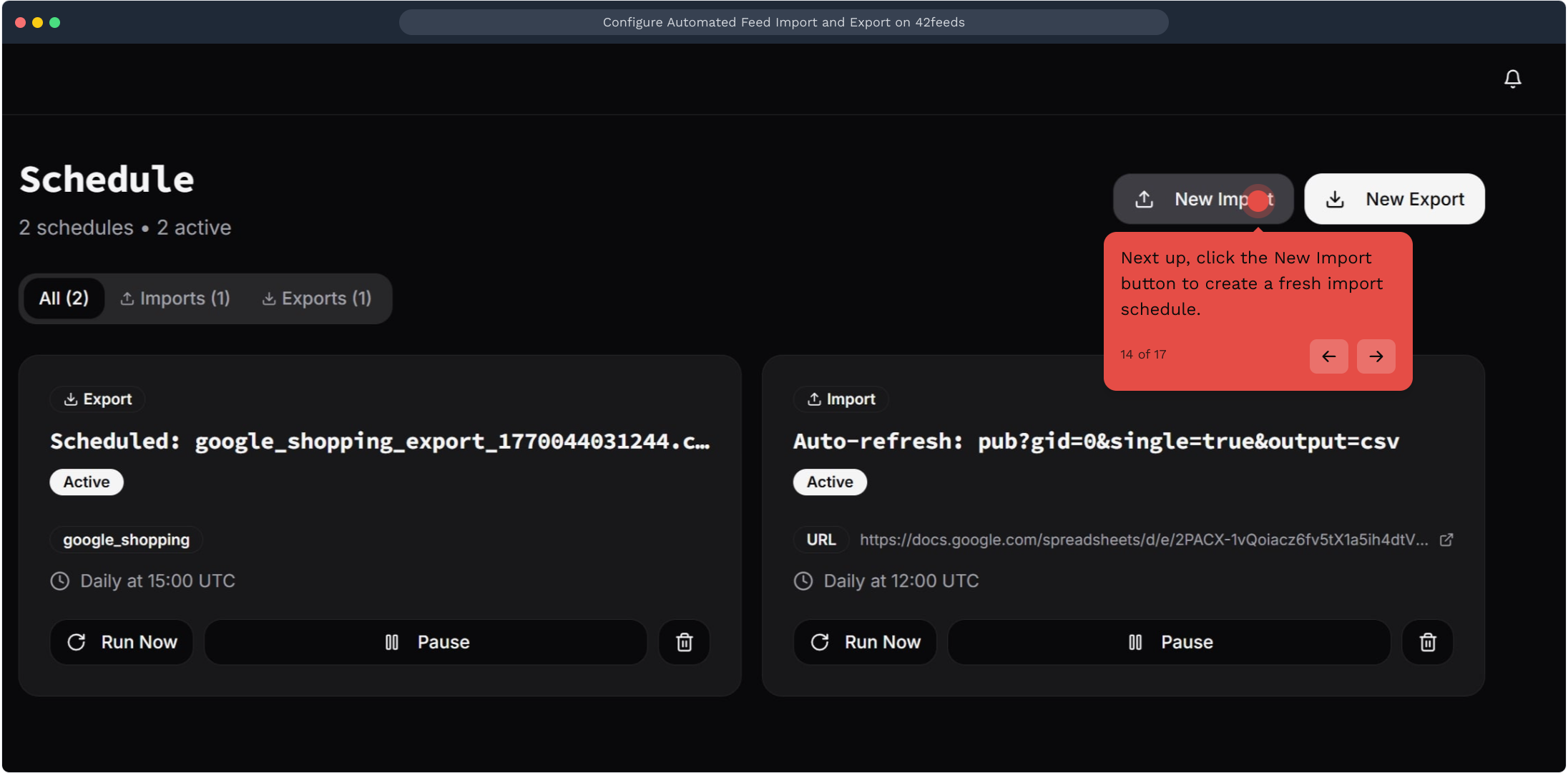
14. Next up, click the New Import button to create a fresh import schedule
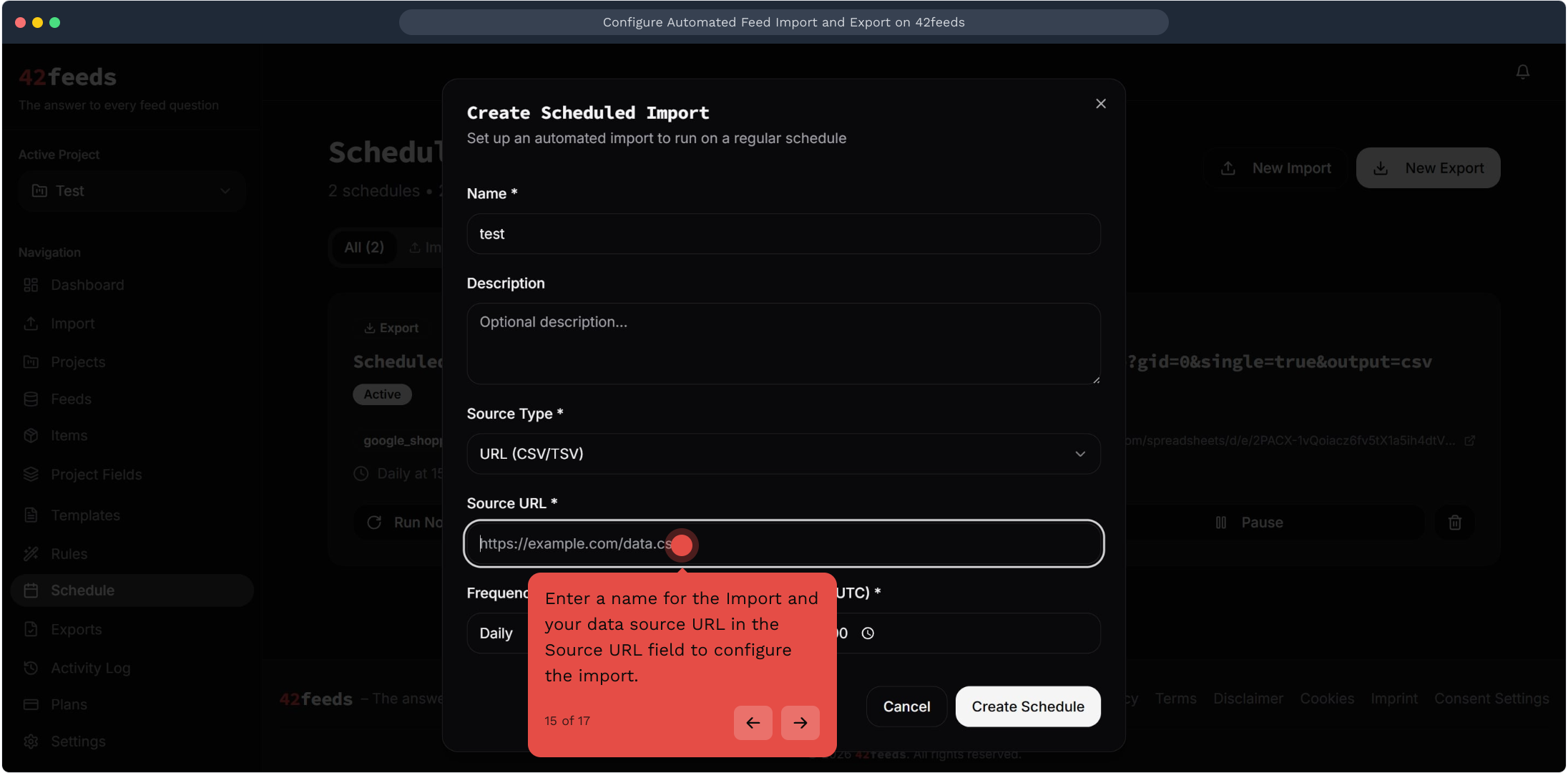
15. Enter a name for the Import and your data source URL in the Source URL field to configure the import
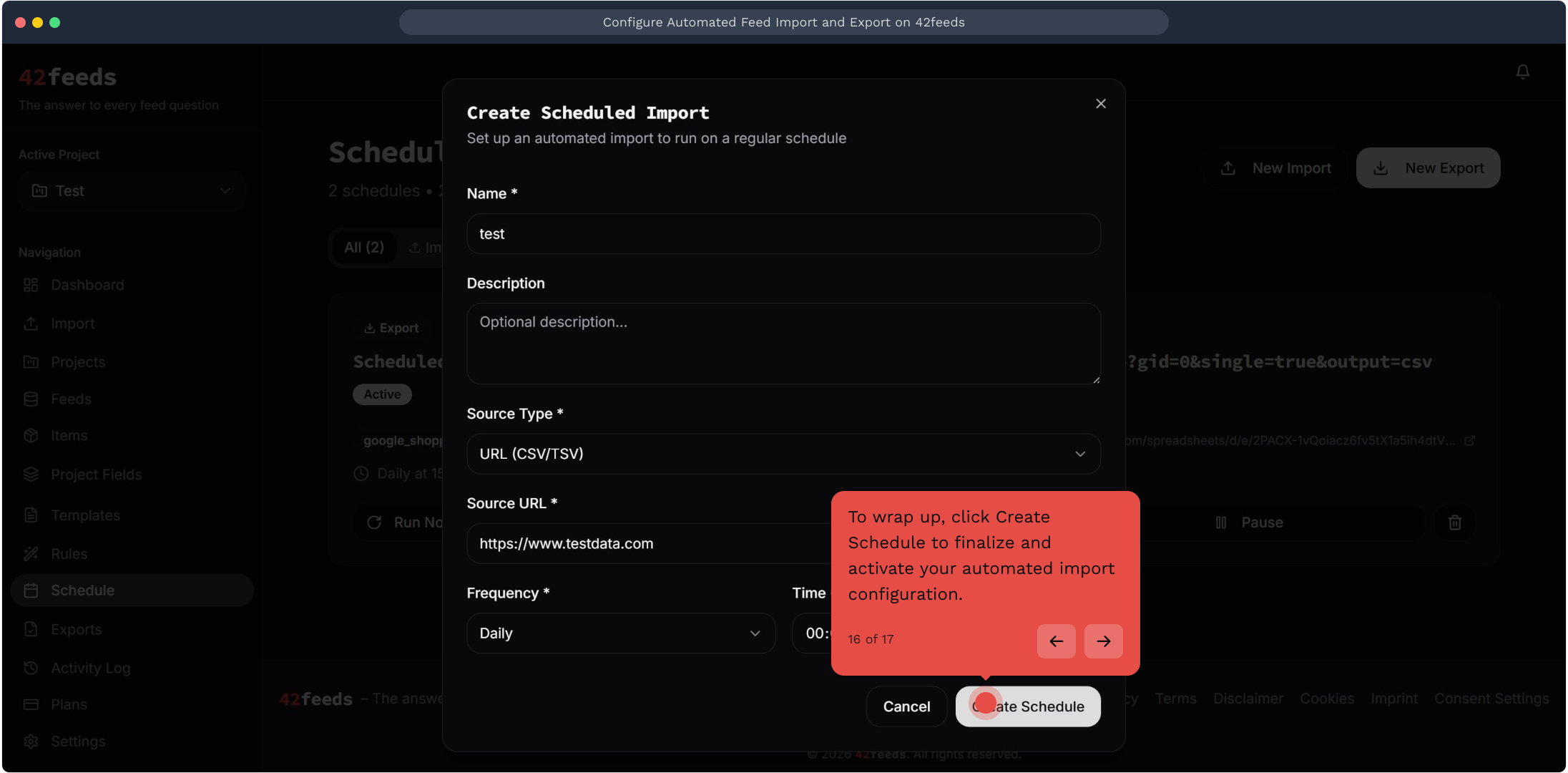
16. To wrap up, click Create Schedule to finalize and activate your automated import configuration
This workflow was created with Supademo.